Tour of the Agent Profile
Tour of the Agent Profile


Navigation and Agent Selection
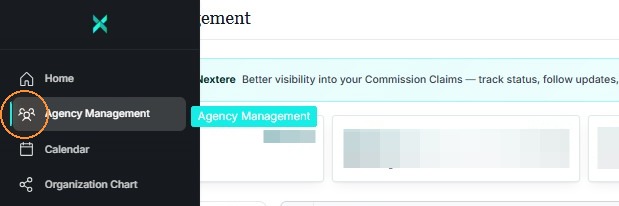
2. Go to the left and select "Agency Management" from black sidebar
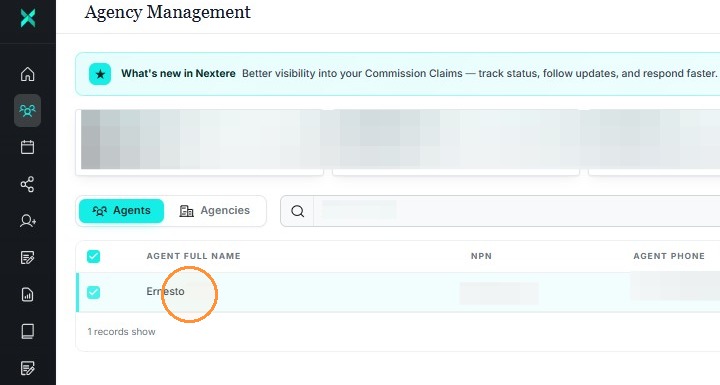
3. Click on the agent name.
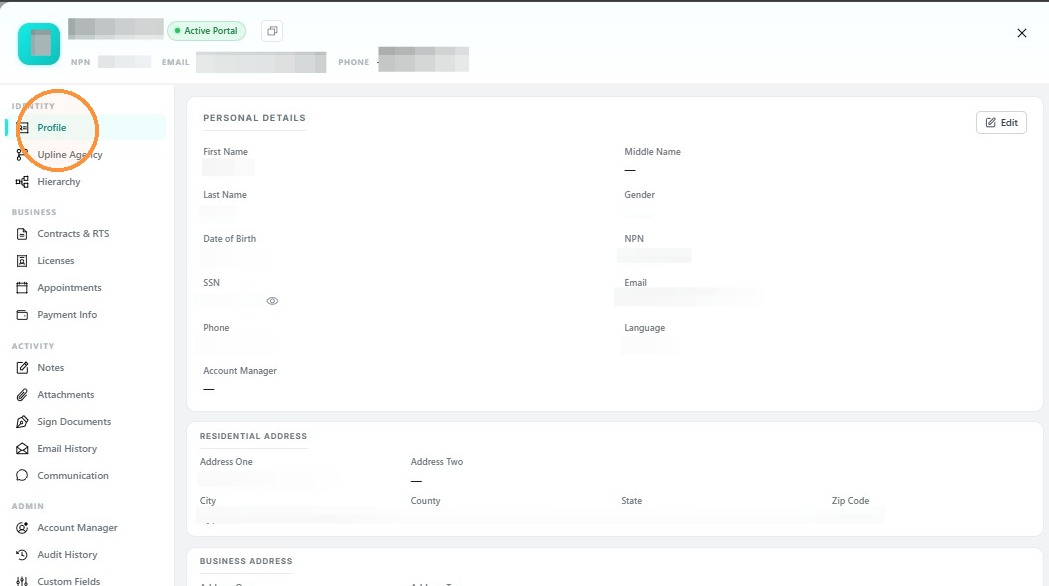
Agent Profile Overview
4. A side window will appear to show the agent/agency all of the information about the agent. On the left side of the window, you can see their information in Profile.
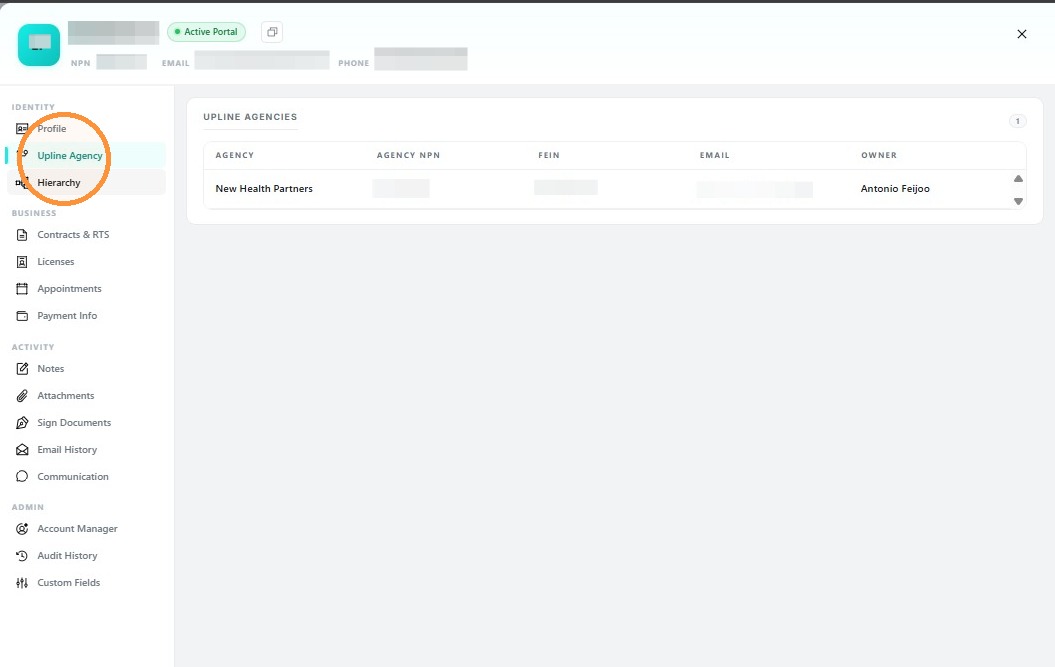
5. Select "Upline Agency" to view associated agencies
6. Click "Hierarchy" to view reporting structure
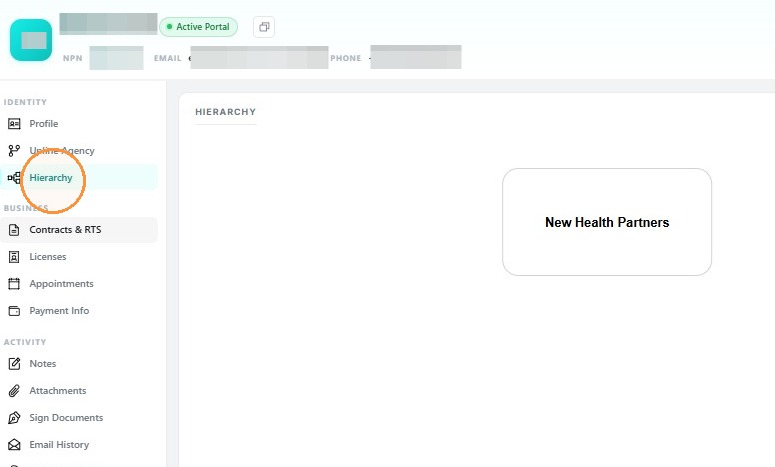
7. Select "Contract & RTS" to view and request carrier contracts
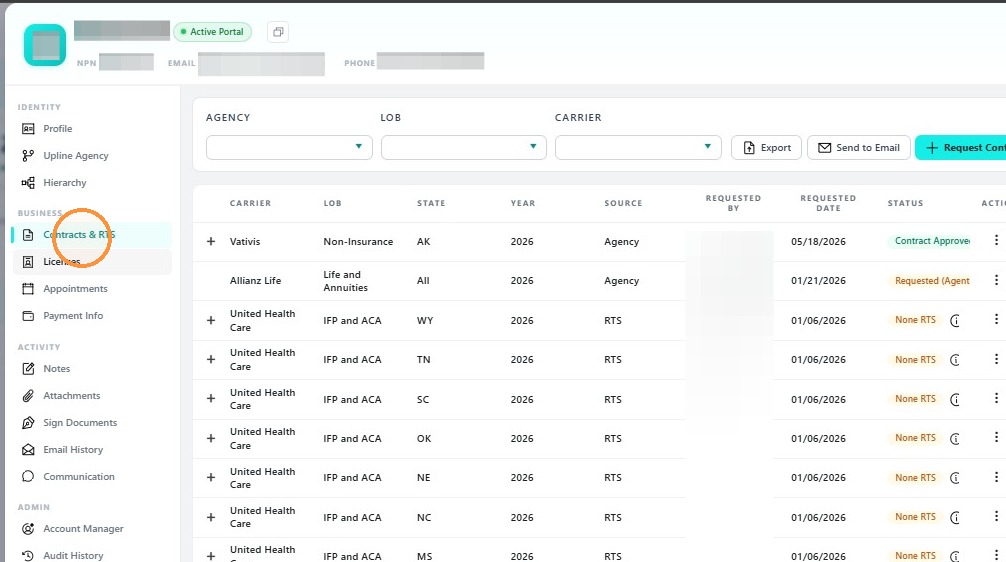
8. Select "Licenses" to view agent credentials
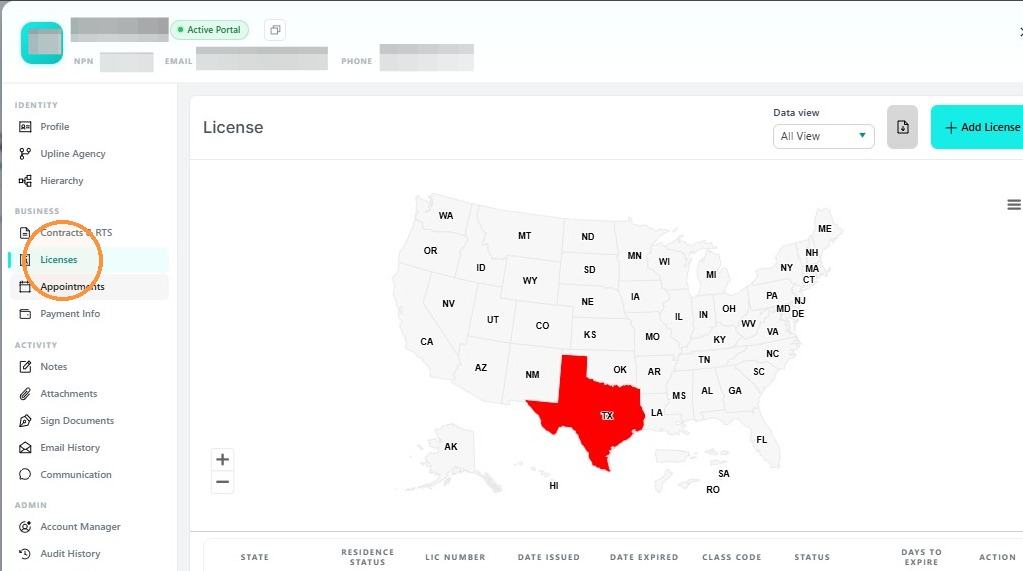
9. Click "Appointments" to see scheduled assignments
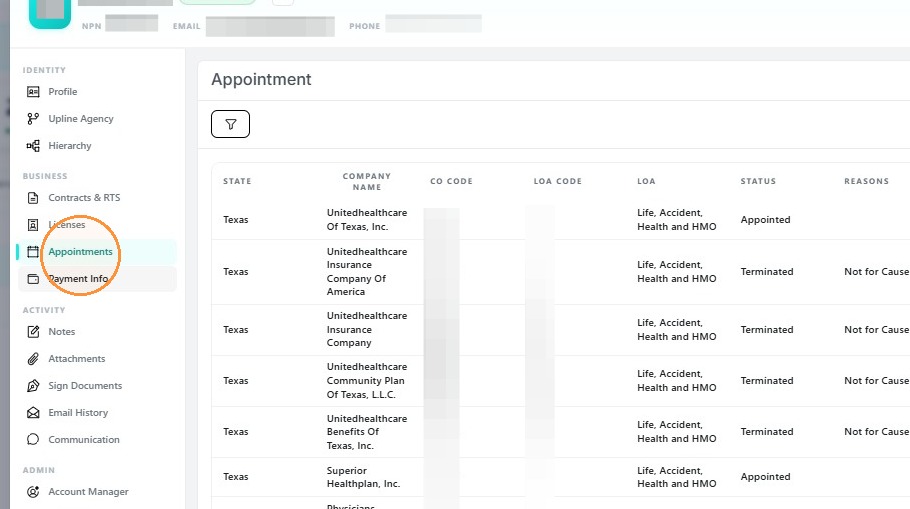
10. Click "Payment Info" section to enter your payment information for commission reasons
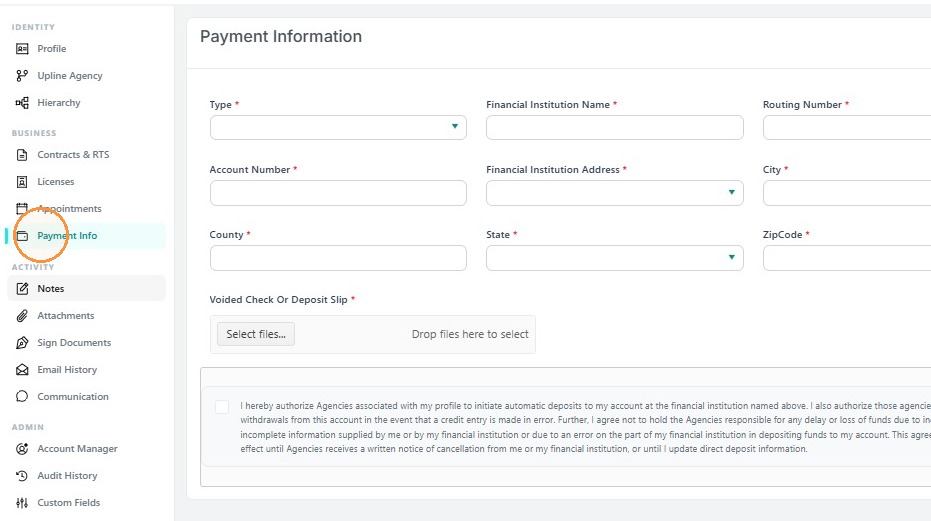
11. Click "Notes" to view or add agent-specific comments
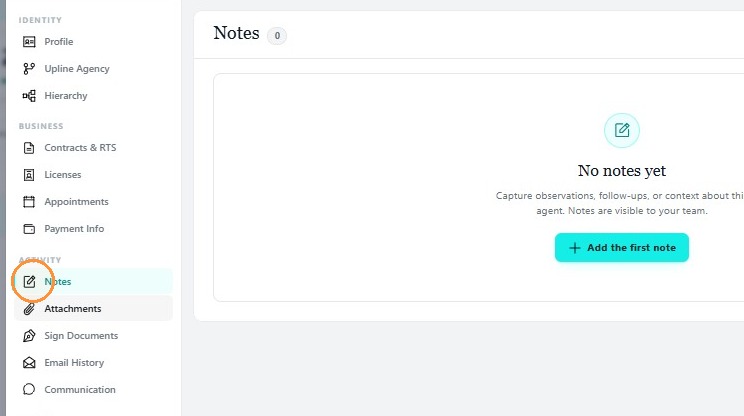
12. View "Attachments" associated with agent
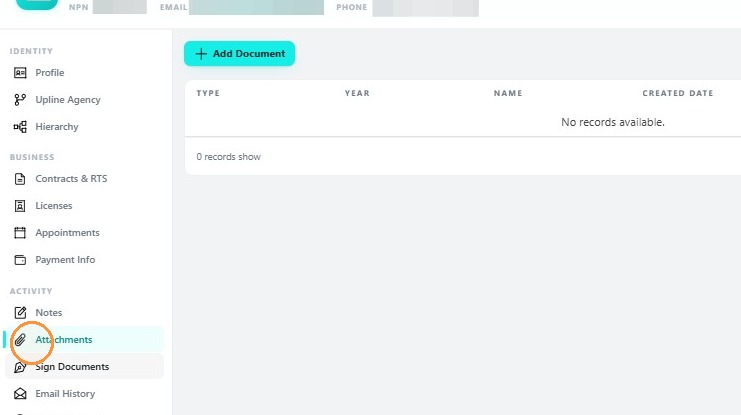
13. Click "Sign Documents" to manage electronic signatures
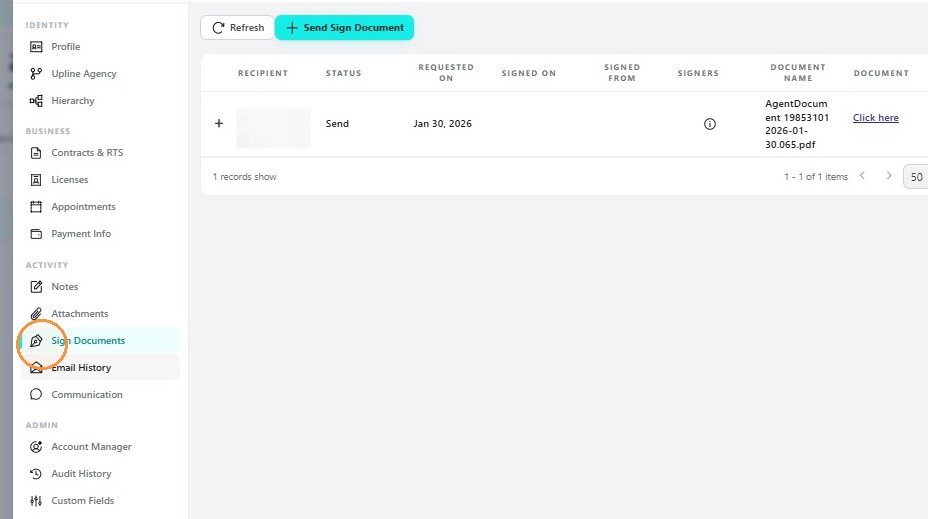
14. Click "Email History" to view previous correspondence
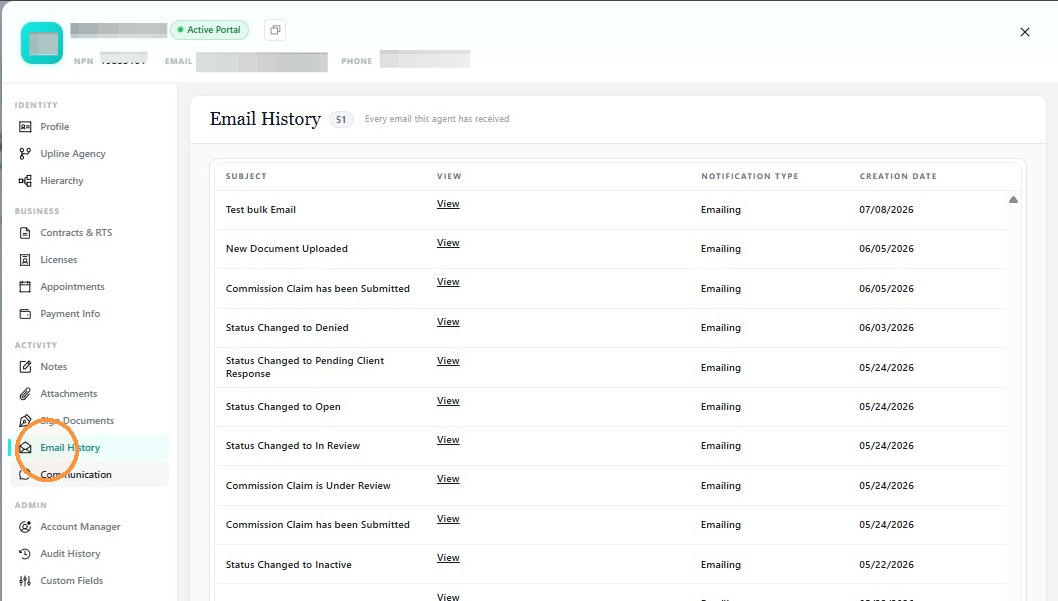
15. Click "Communication" to send emails
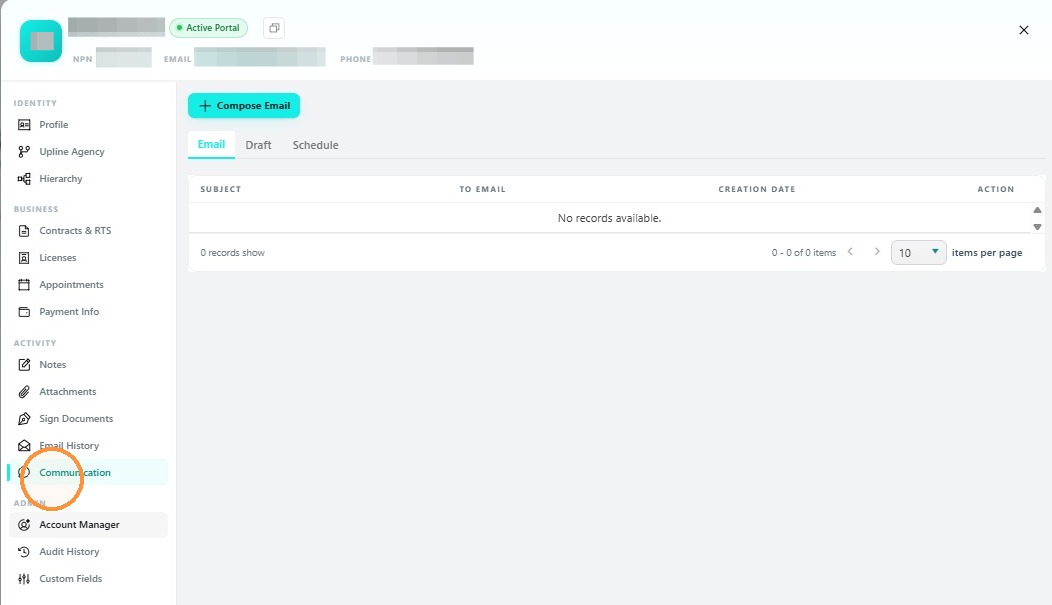
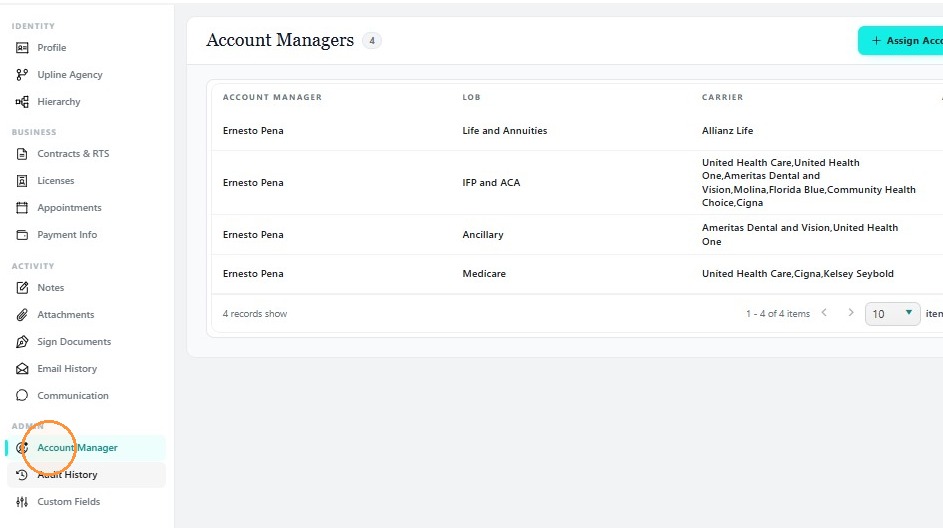
16. Click "Account Manager" to view assigned staff
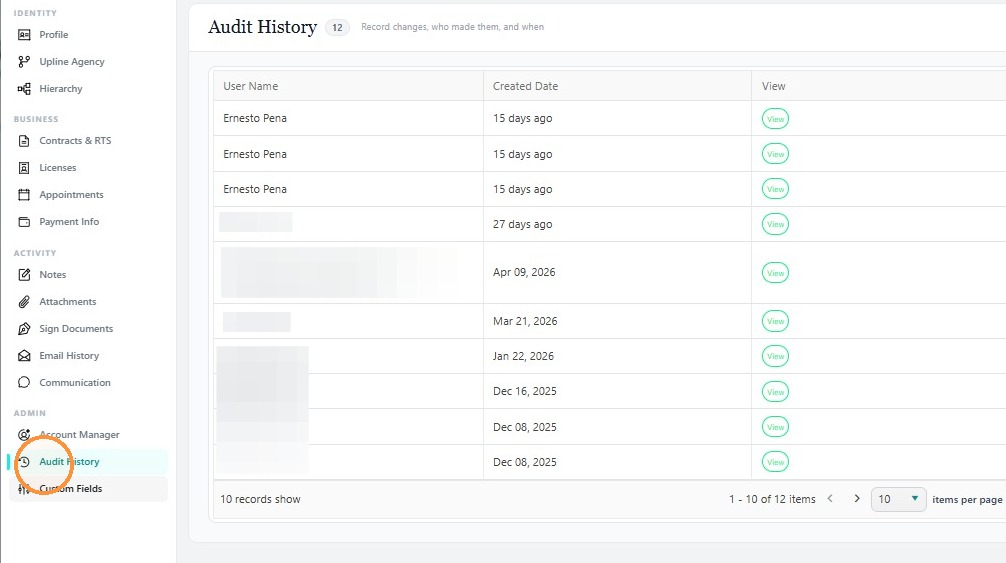
17. Select "Audit History" to track profile changes
Related Articles
Navigation Menu
Navigation Menu This guide is essential for users navigating the Navigation Menu, as it provides clear instructions on managing personal and agency information effectively. 1. From the Nextere Dashboard, go to the upper right corner and click on the ...Navigation Menu: Agent Profile
Navigating the Agent Profile This section showcases the options users have to edit their agent information. Introduction The Agent Profile is the central management area for your professional identity within the platform. It allows you to maintain ...Navigation Menu: Agency Profile
Navigation Menu: Agency Profile This section is like the Agent Profile, but showcases the options users have to edit their agency information and certain preferences when it comes to doing business with an Upline. To access this section, users need ...How to submit a contract request at Agent Level
Submitting a Contract Request (Agent Level) Submitting a contract request is a vital step in expanding your sales authority. This process allows you to request appointments with specific carriers for various Lines of Business (LOB) while ...Navigation Menu: Profile
Navigation Menu: Managing Your User Profile & Security Settings Introduction The Profile menu allows you to manage your personal identity, login credentials, and account security. These settings apply specifically to the user currently signed into ...