How to submit a contract request at Agency Staff Level
Submitting a Contract Request (Agency Staff Level)

Introduction
As an Agency Staff member, you have the authority to manage contracting on behalf of your agents. This guide explains how to submit individual contract requests, whether you are requesting a brand-new appointment or recording a contract that the agent already holds.
Step-by-Step Instructions
- Log In: Navigate to https://app.nextere.com/
2. Locate Agent: Click Agency Management in the left-hand menu.
4. Navigate to Contracts:
Within the Agent Profile, click the Contracts & RTS tab.
5. Click Contracts in the upper-left corner of the sub-menu.
6. Choose Request Type: Click "Add Contract" and select one of the following:
- Standard Request: Select this to initiate a brand-new appointment request with a carrier.
- Add Existing Contract: Select this if the agent is already contracted with the carrier, but the record needs to be added to the platform for tracking.
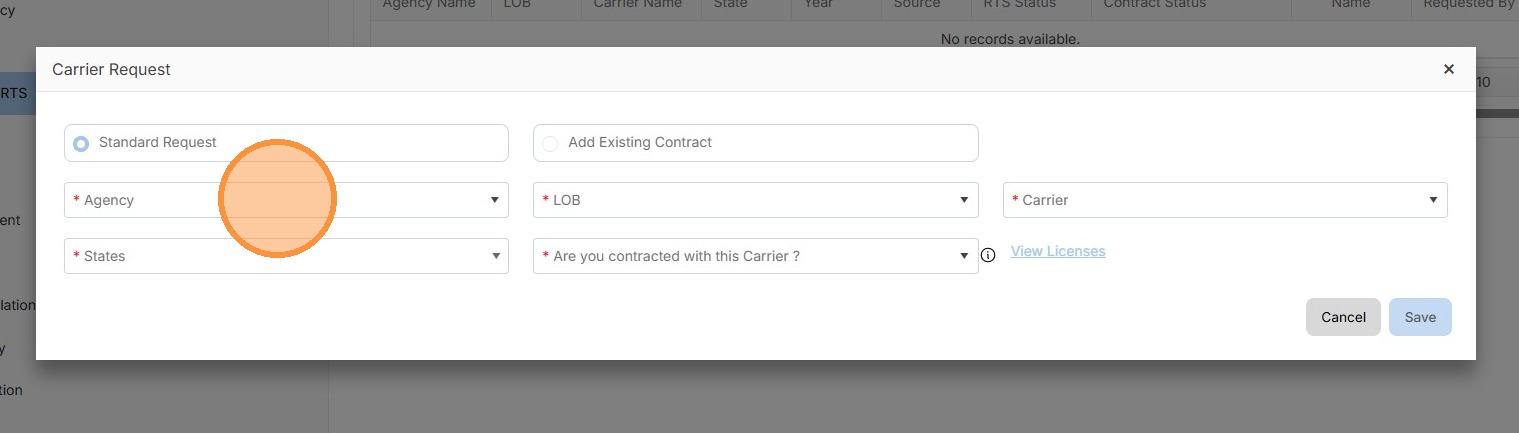
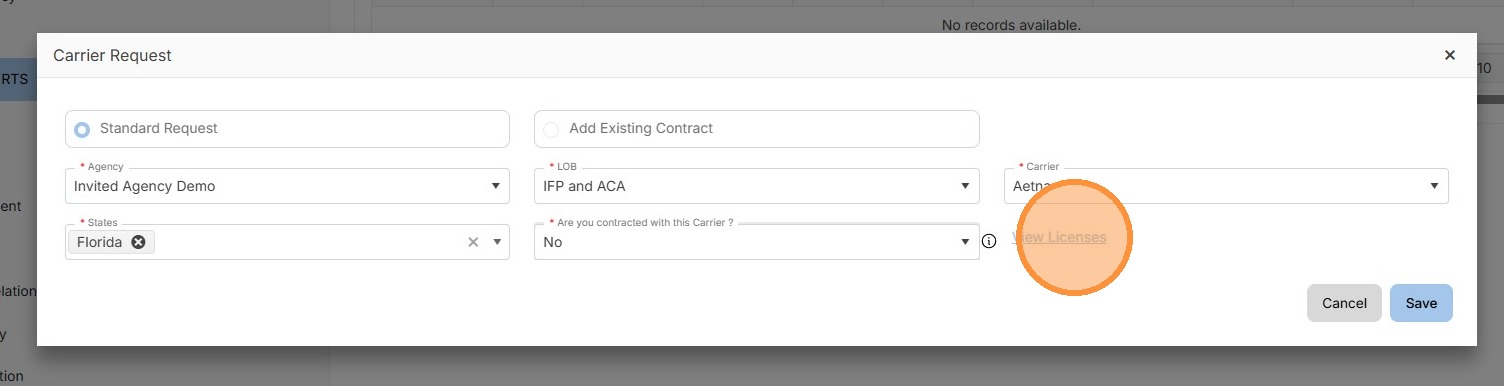
7. If the user adding the contract wants to verify that they hold a license for the requested state, they can click "View License".
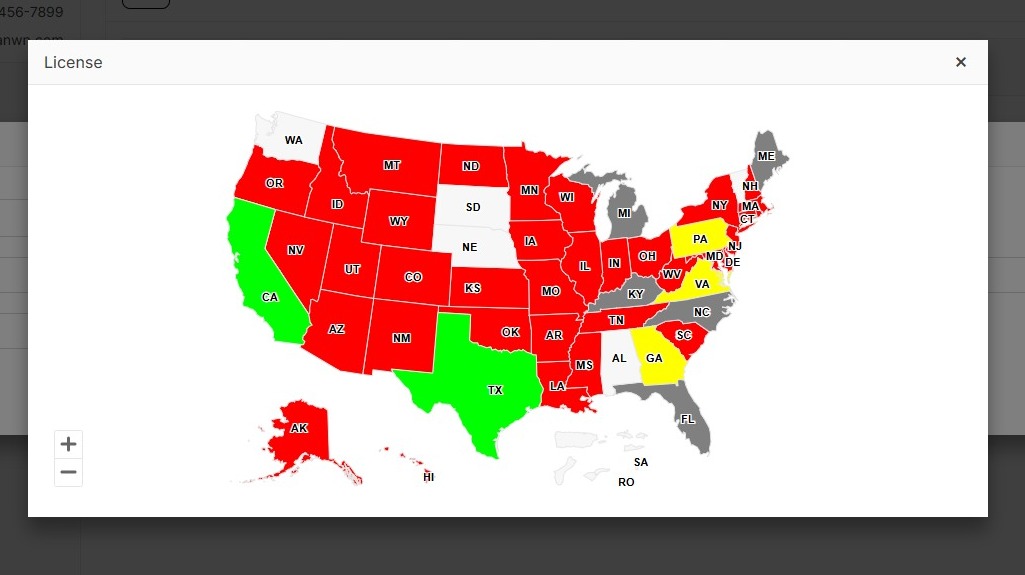
8. "View License" displays all states in which the user is licensed.
🟢 Green: Active license.
🟡 Yellow: Approaching expiration.
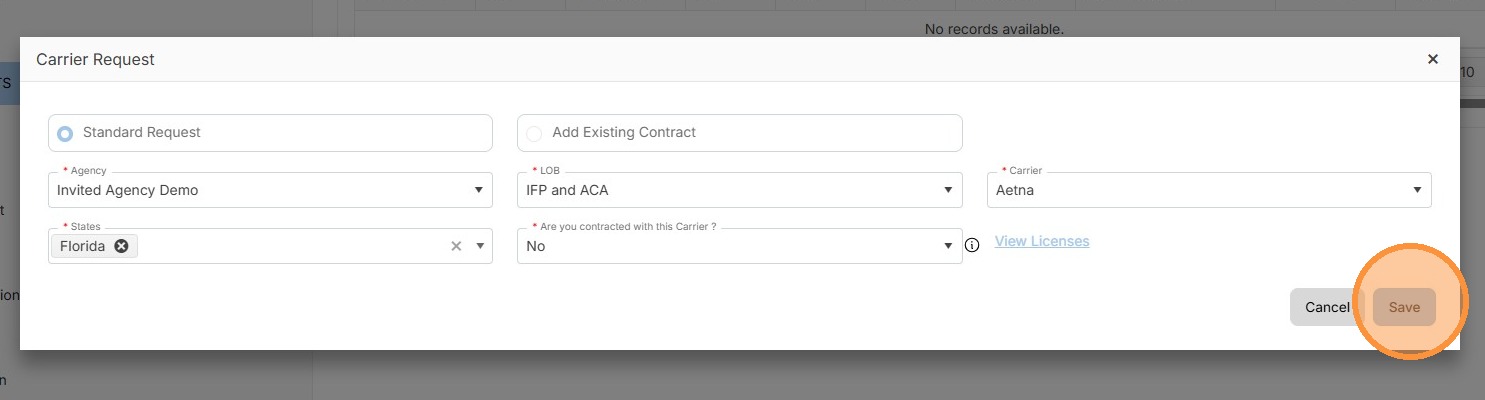
9. Submit: Fill out the required fields (Carrier, LOB, States) and click Save.

Troubleshooting/Tips
License Colors: If a state appears in Red, the "Save" button may be disabled. The agent must renew their license at the state level before you can submit the request.
Carrier Selection: If a carrier does not appear in the dropdown, ensure that your Agency/FMO has been onboarded with that carrier first.
Efficiency: Use "Standard Request" primarily for new business. For agents transferring their existing book of business, "Add Existing Contract" is the correct choice to maintain historical accuracy.
FAQ
1. Can I submit a contract for a state where the agent isn't licensed yet?
Technically, the system may allow you to fill the fields, but it is highly recommended to check View License first. Most carriers will reject a contract request if a valid license is not on file with NIPR for that state.
2. What is the difference between "Pending" and "RTS" (Ready to Sell) status?
A "Standard Request" usually starts as Pending. Once the carrier confirms the appointment and all background checks are clear, the status will move to RTS, indicating the agent can officially write business.
3. Does the agent get notified when I submit a request for them?
Yes. Agents typically receive an automated notification that a contract request has been initiated on their behalf, allowing them to sign any necessary documents.
4. How do I edit a request after clicking "Save"?
Once saved, the request is sent to the processing queue. To make changes, you will need to open the specific contract record from the agent's Contracts & RTS list and select the edit icon (if available) or contact the carrier relations department.
Related Articles
How to submit a contract request at Agent Level
Submitting a Contract Request (Agent Level) Submitting a contract request is a vital step in expanding your sales authority. This process allows you to request appointments with specific carriers for various Lines of Business (LOB) while ...How to request contracts
How to Request Contracts (Agent Level). Introduction This guide outlines the process for agents to submit contract requests through the Central platform. Requesting a contract is the first step toward getting appointed with a carrier to sell specific ...How to resolve message: Agency that connect with Agent does not allow you to create Request Agent's Contract
How to resolve message: Agency that connect with Agent does not allow you to create Request Agent's Contract Learn how to solve "Agency that connect with Agent does not allow you to create Request Agent's Contract" message. Why do users receive the ...How to resolve message: Your agency blocks you from requesting a contract.
How to resolve message: Your agency blocks you from requesting a contract. Learn how to solve "your agency blocks you from requesting a contract" message. Why do users receive the following message? This is caused by a specific agency setting. As per ...Resolution Guide: When an upline cannot see a contract, they just requested for another agency
Resolution Guide: When an upline cannot see a contract, they just requested for another agency This guide is to provide assistance to the Onboarding & Contracting Team when handling the following issue: An Upline states they cannot see their ...