How to Set Up a New User Account
How to Set Up a New User Account

1. Go to https://app.nextere.com/
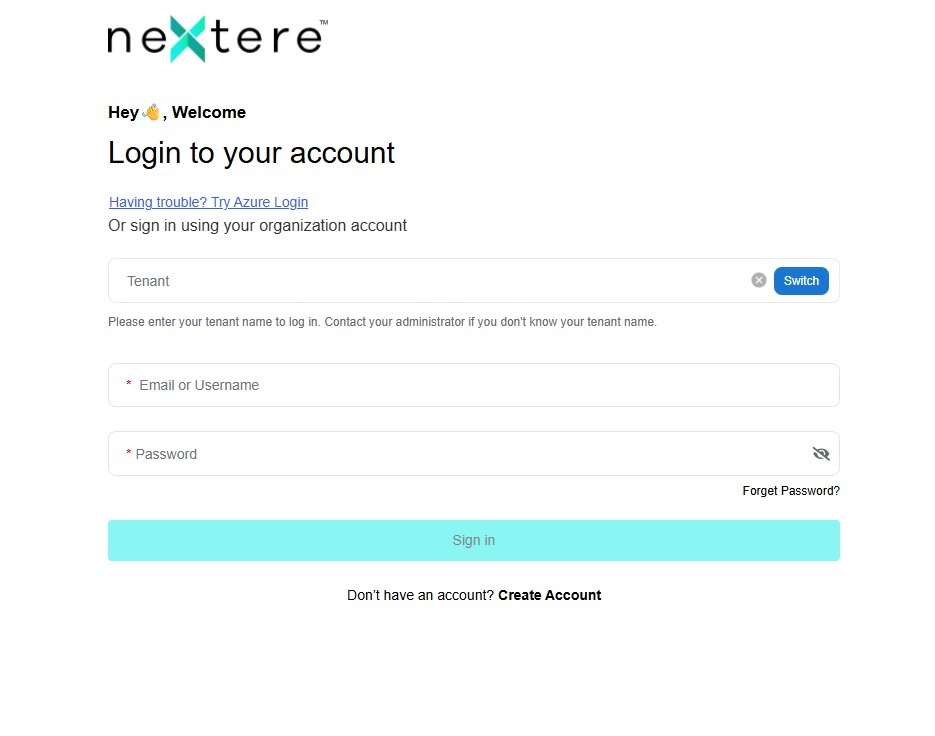
2. Click "Switch" to enter the Tenant
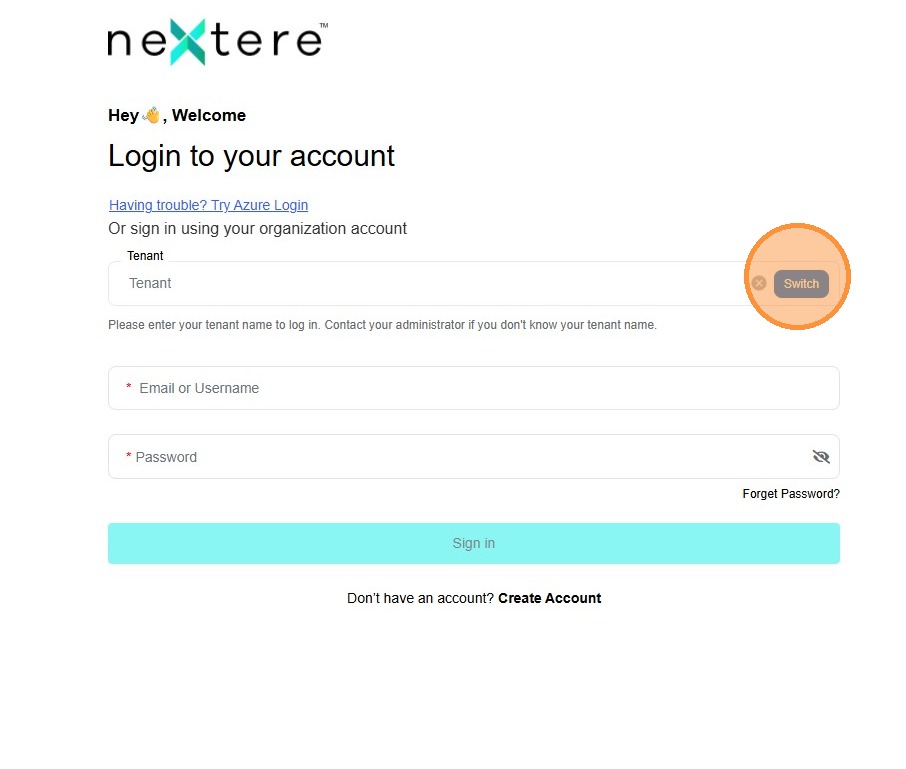
3. Click "Tenant"
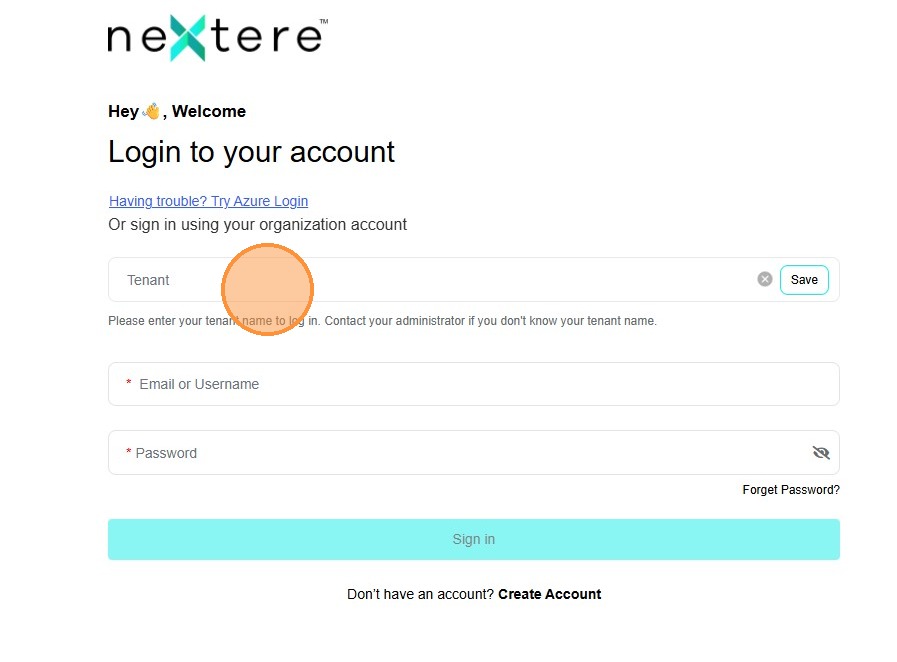
4. Enter the tenant provided by Nextere or your agency then click "Save"
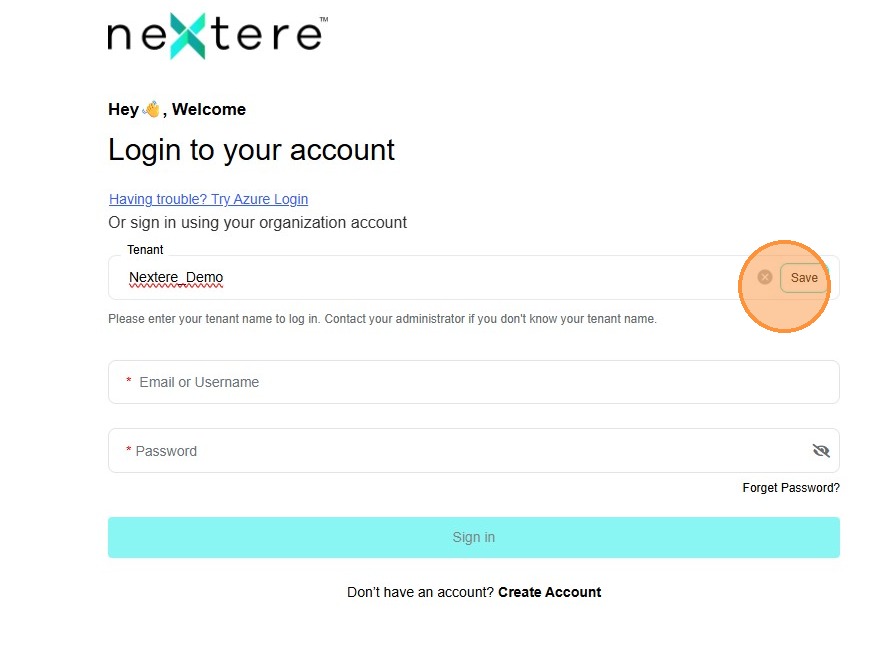
5. Once the email or username and password are entered, click "Sign In"
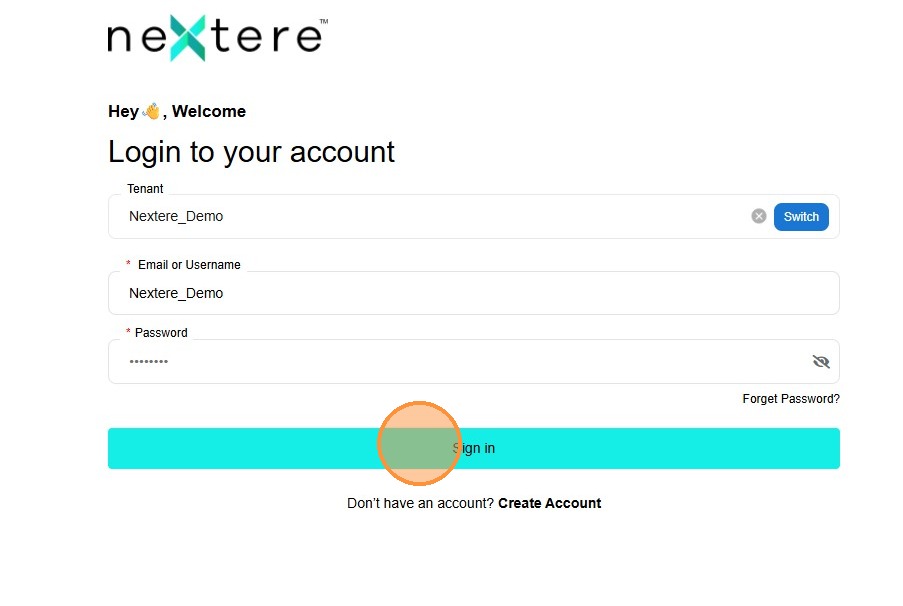
6. In Central's landing page scroll to the left
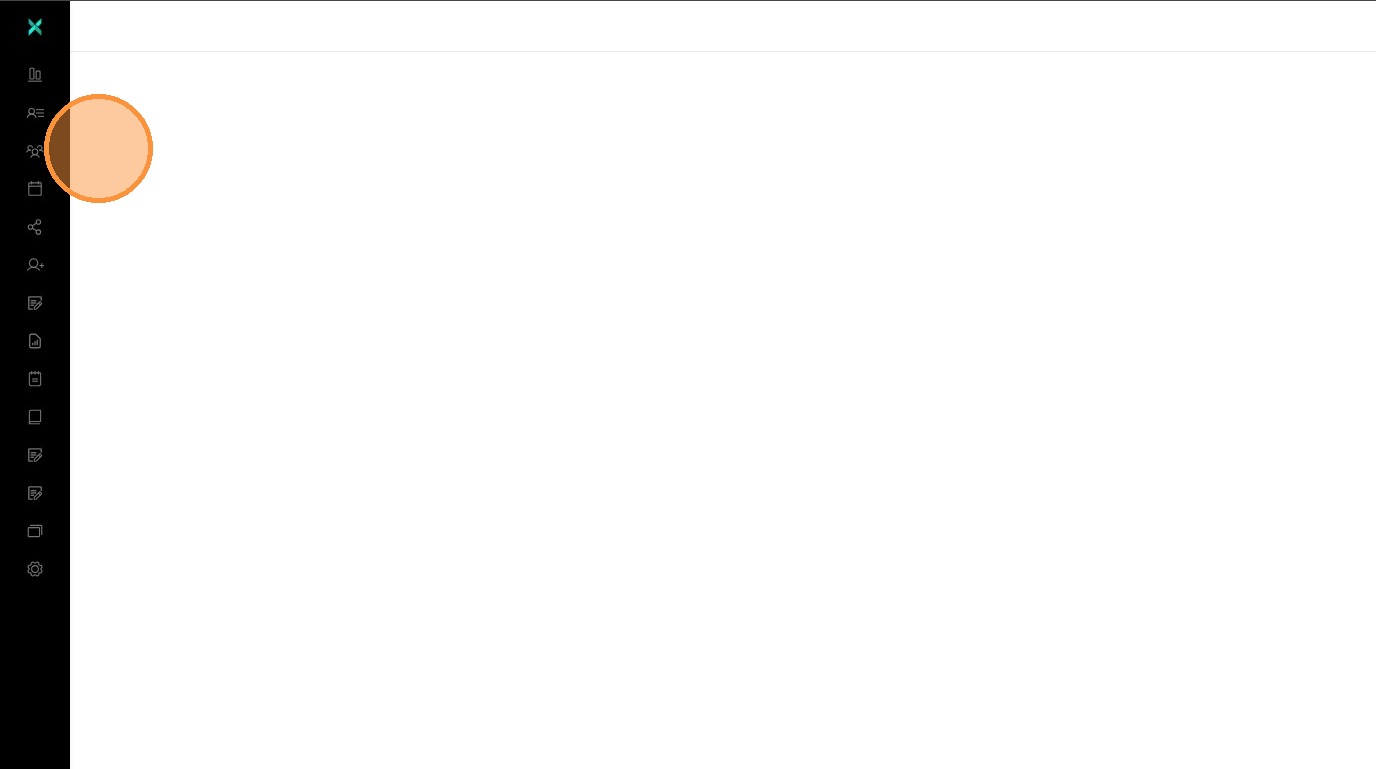
7. Click "Settings"
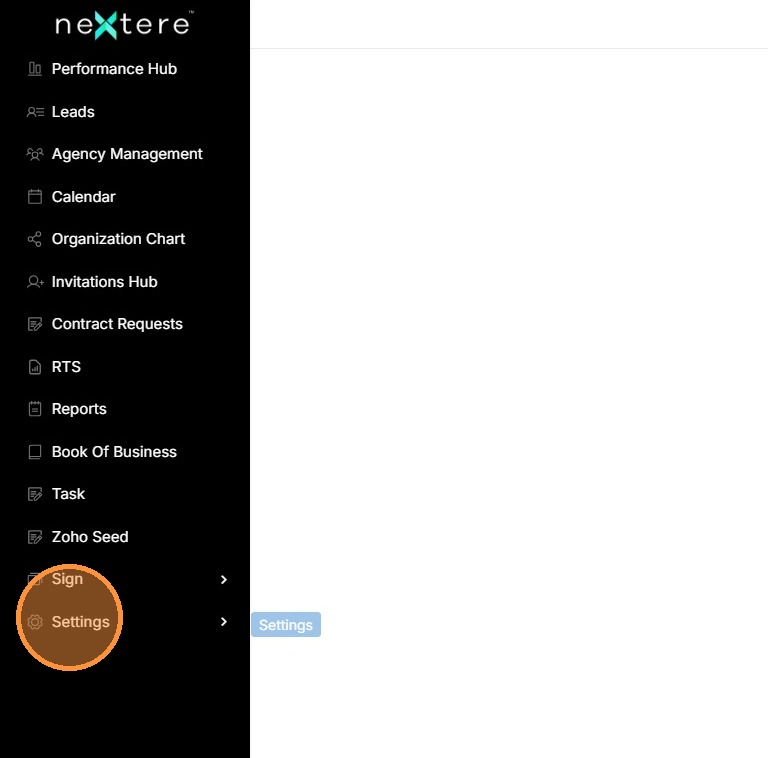
8. Click "General"
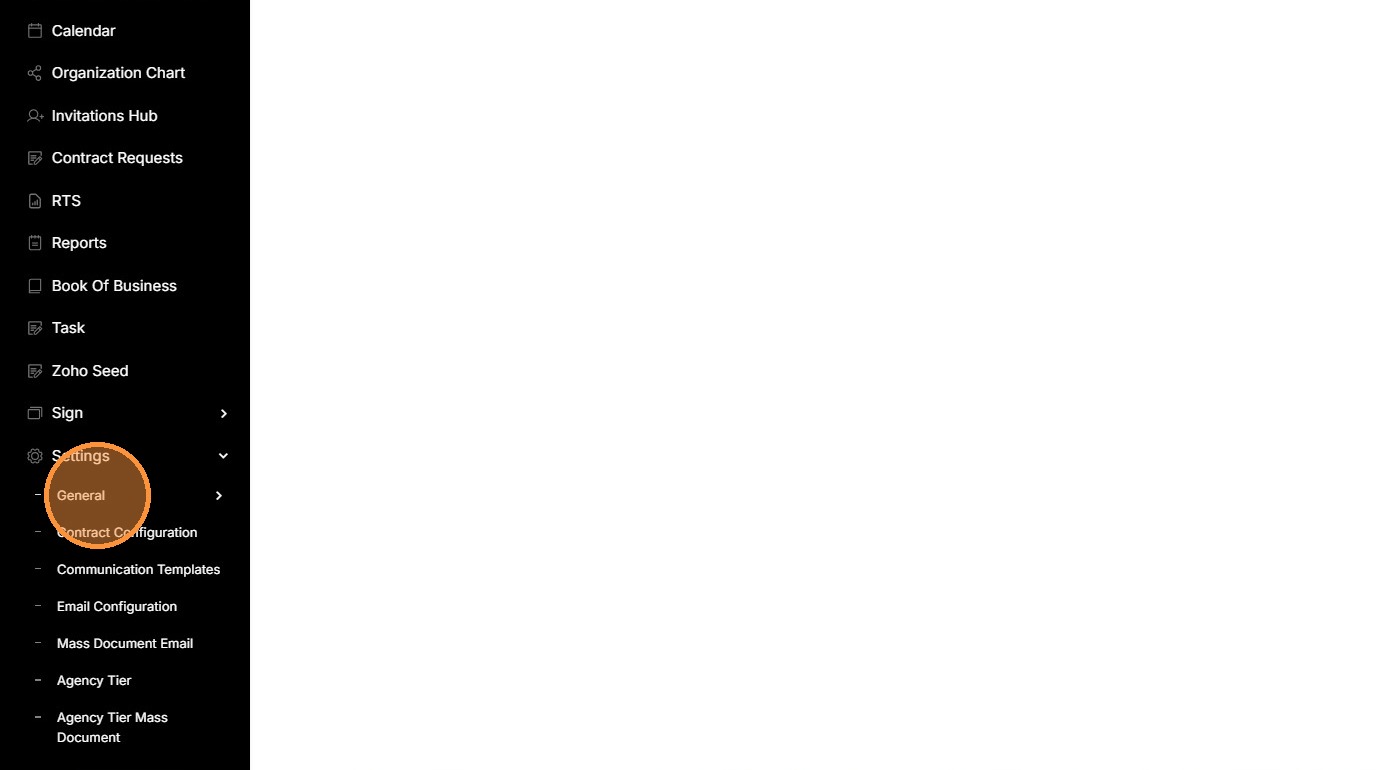
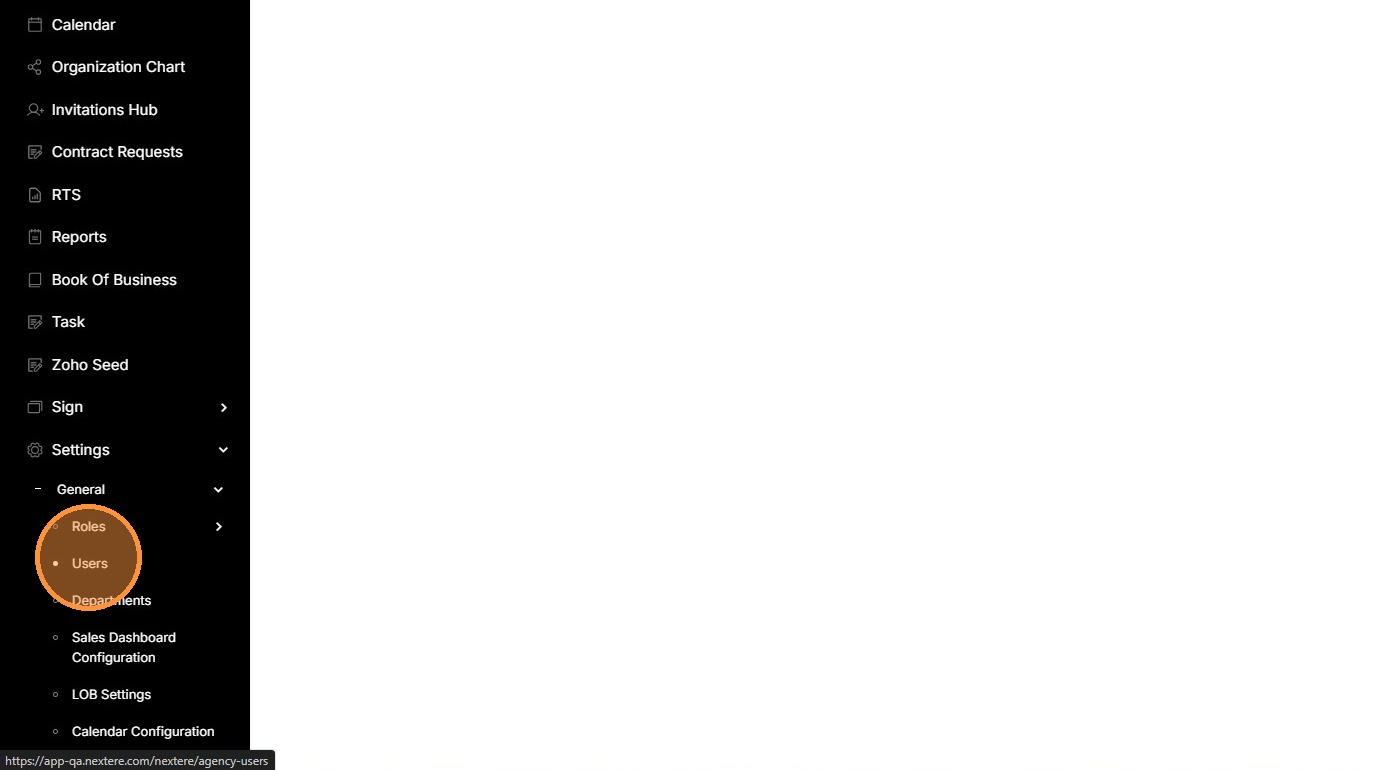
9. Click "Users"
10. Click "+ User" in the top right of the screen to add a new user.
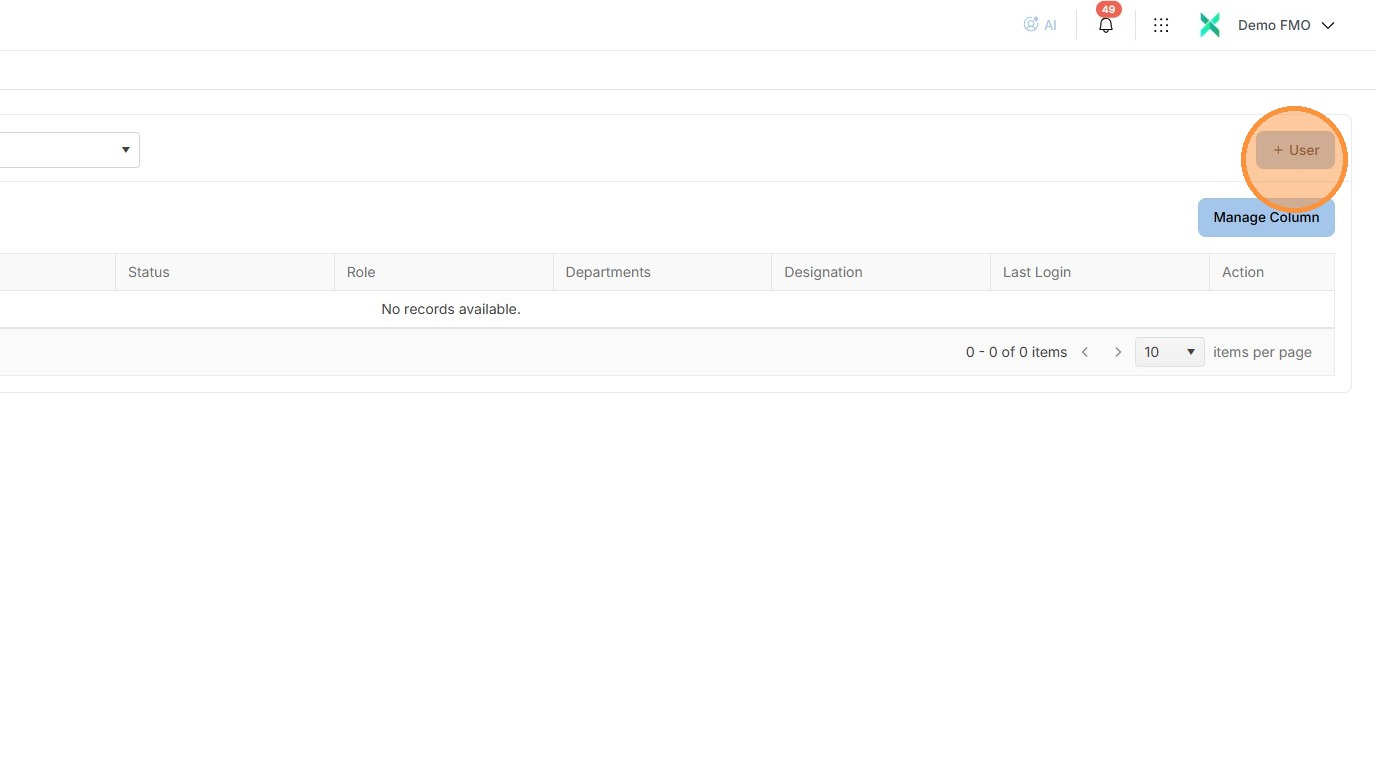
11. These users are part of your agency and are given access based on the roles you assign. For example, if a user is an administrator helping with operations, the principal user can assign them the appropriate permissions here.
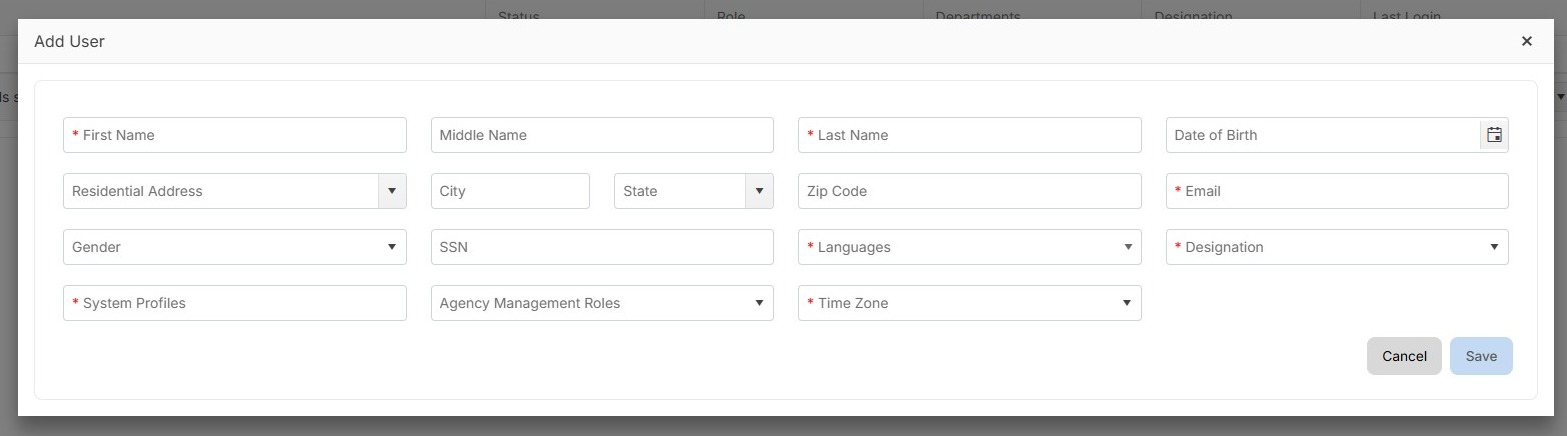
12. Fill out the fields (some are required).
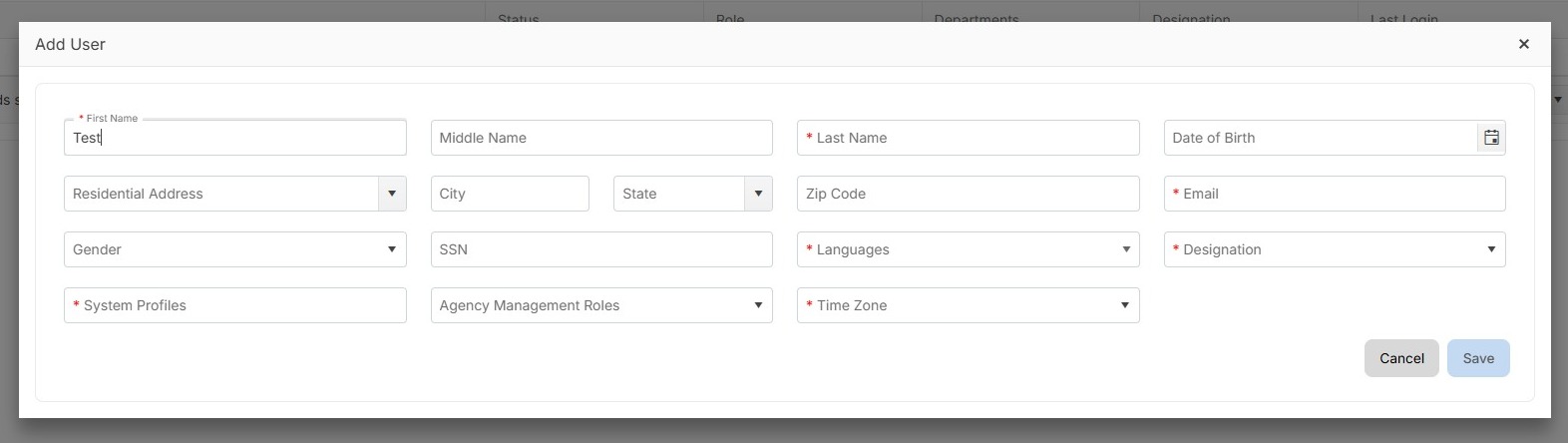
13. Once all the required fields are filled in, click "Save".
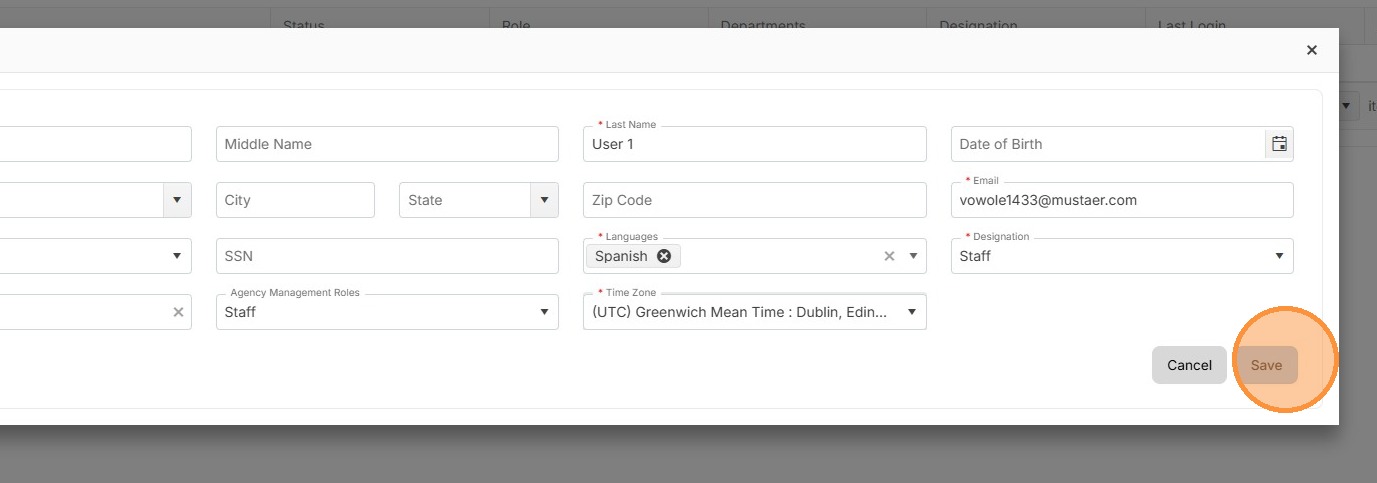
14. The user is now added.
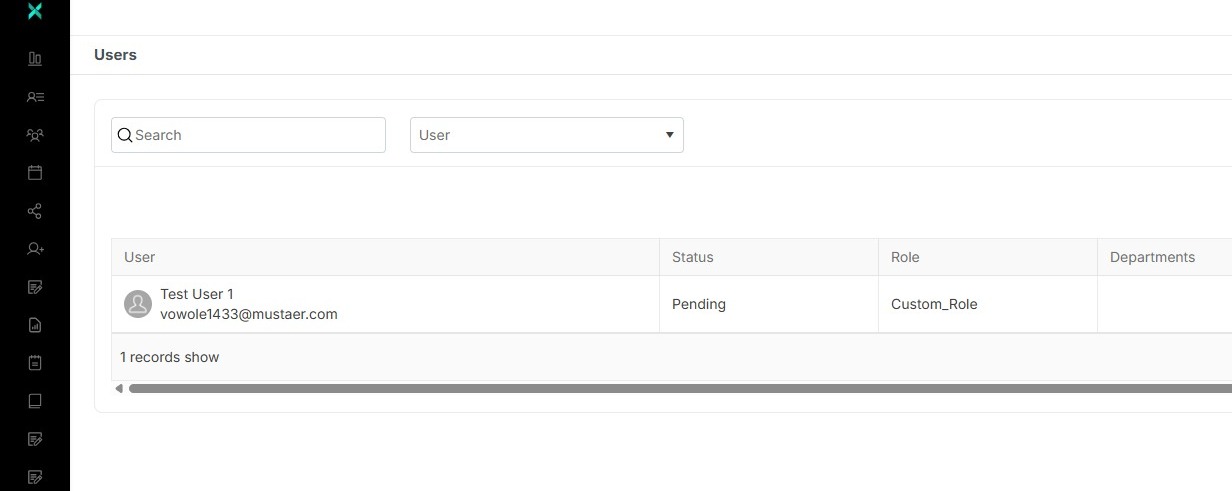
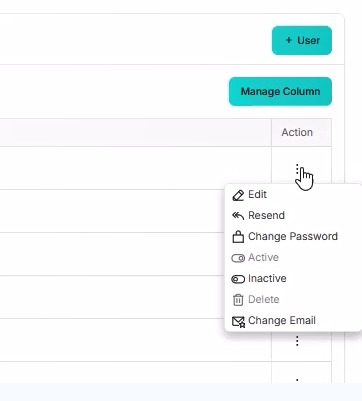
15. If the administrator needs to change any information, they can click the three vertical dots.
16. The newly created user will need to go into their email to set up their account
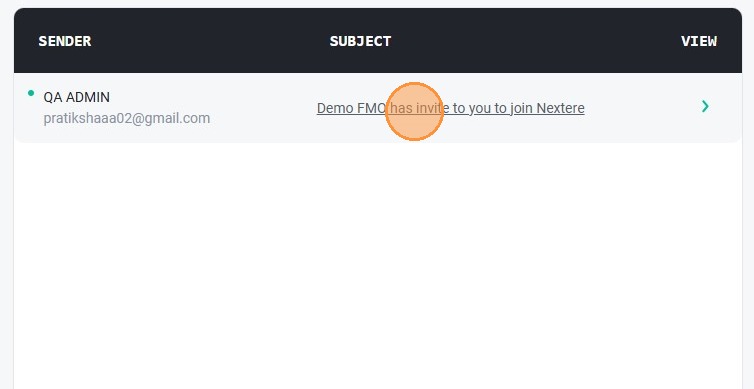
17. Click "Set up Account"
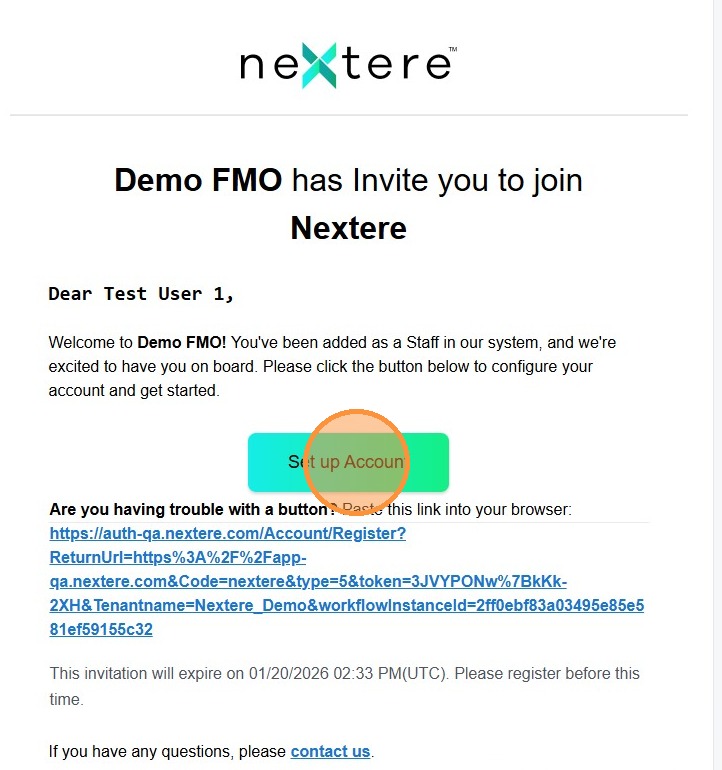
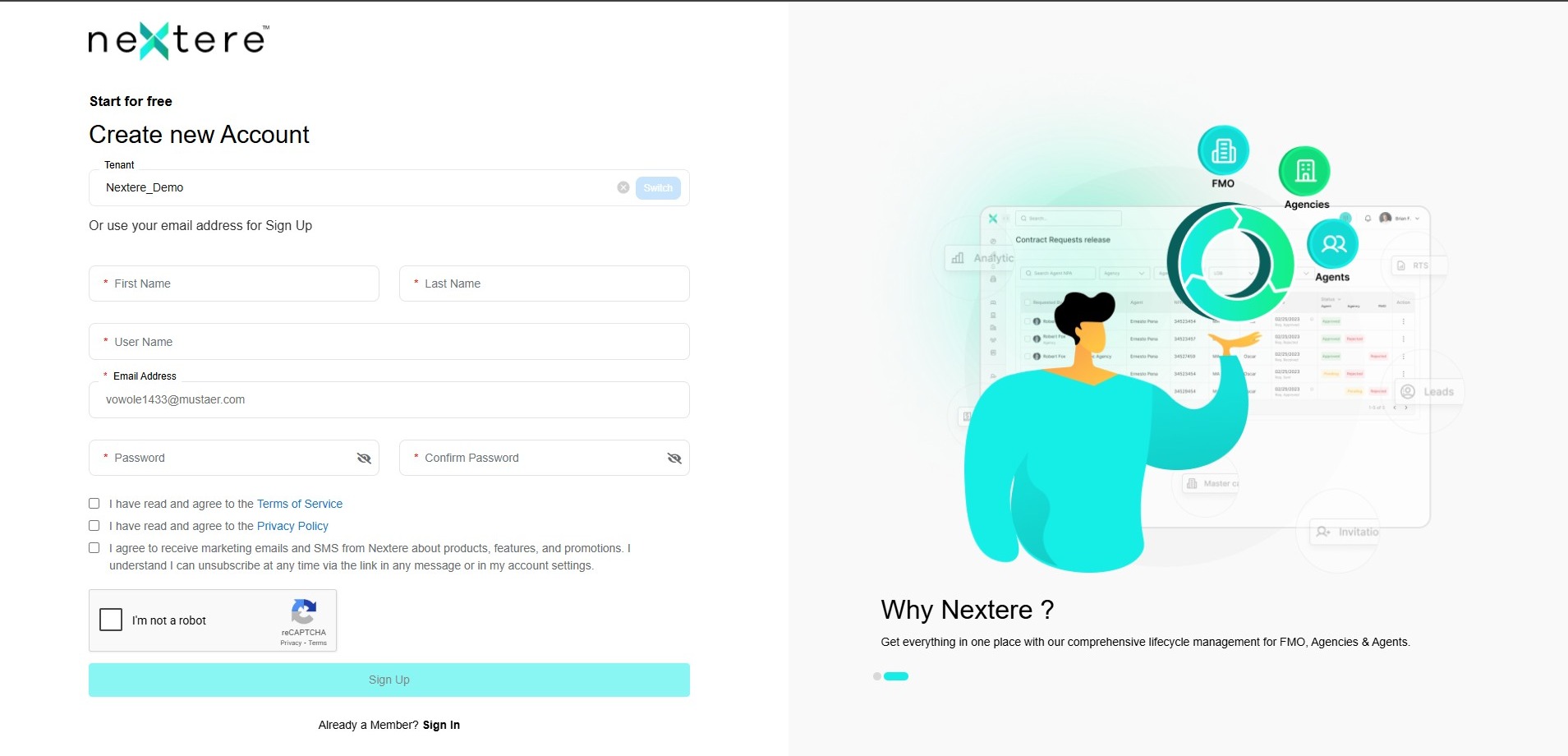
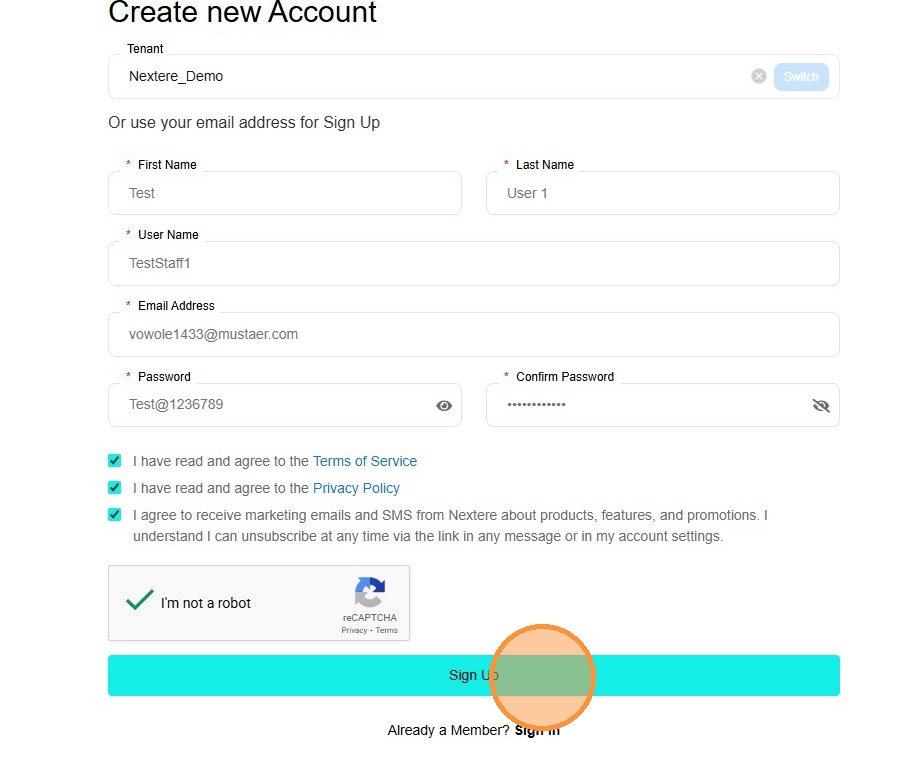
18. The user will need to fill in the required fields to create their account
19. Click "Sign Up"
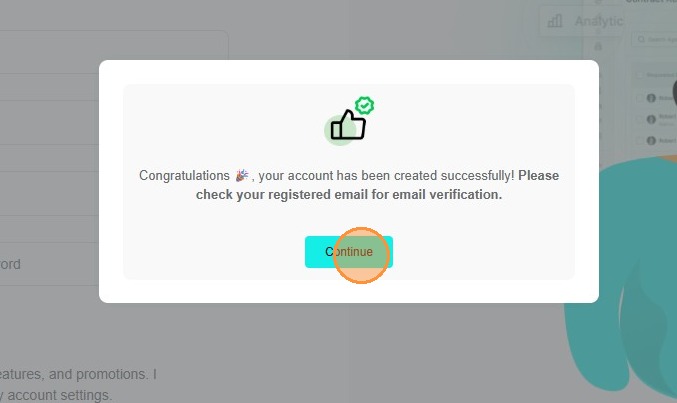
20. Once signed up the user will see a congratulatory pop up
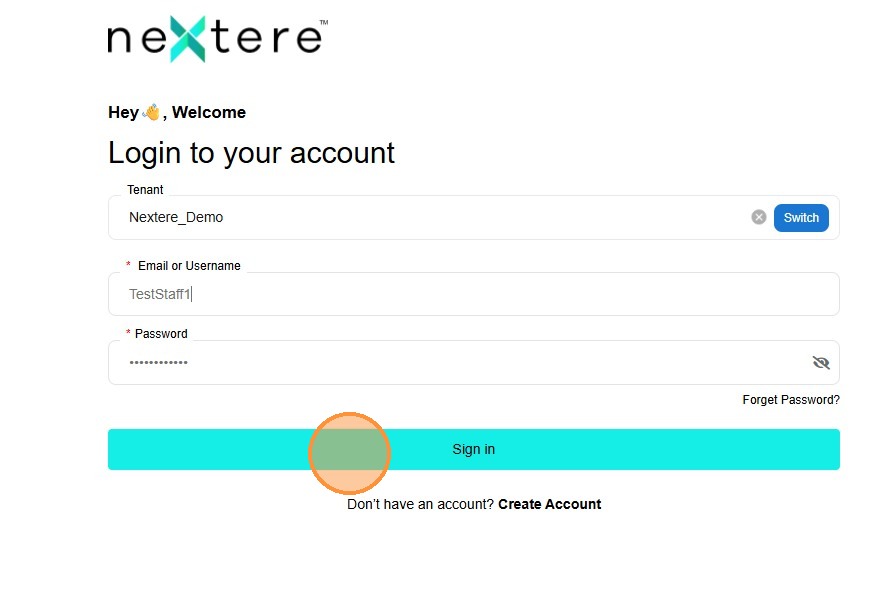
21. The user will go back to the login screen and enter their login information. Once done click "Sign in"
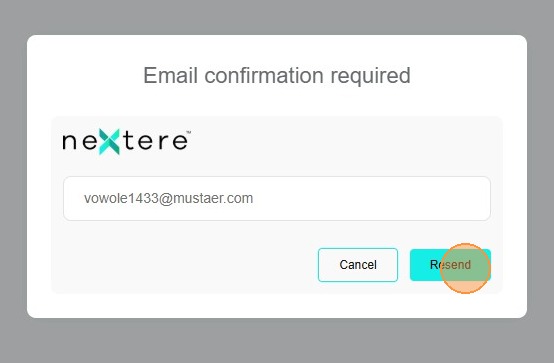
22. The next popup will instruct the user to resend the email confirmation. After clicking "Resend" users need to go back to their email
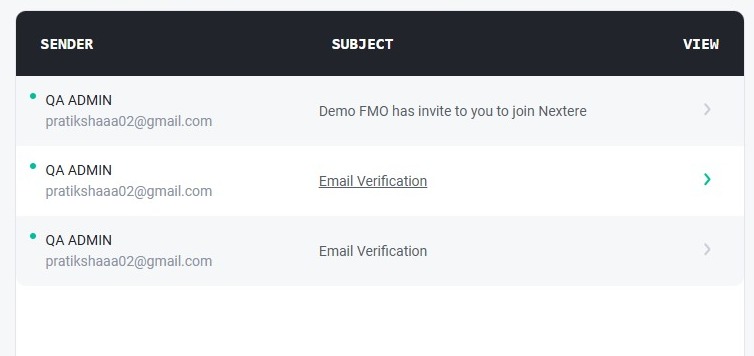
23. Click the most recent email from Central
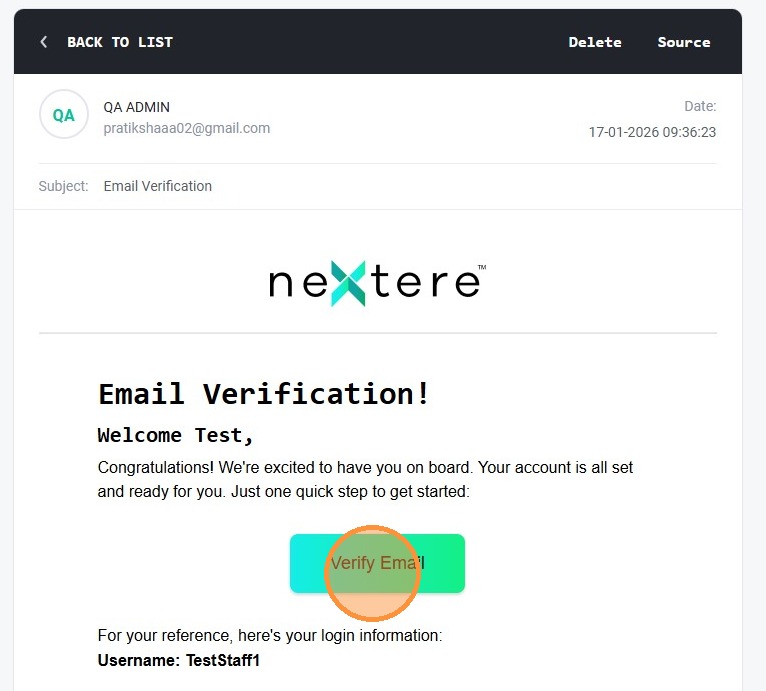
24. Click "Verify Email"
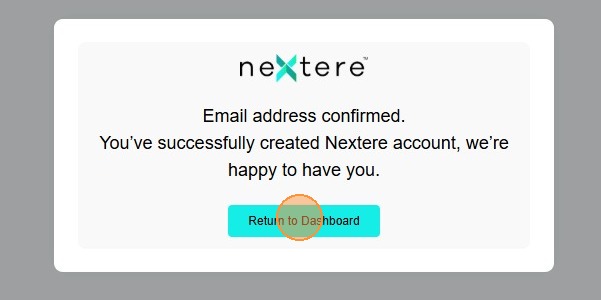
25. Once the email is confirmed, the user can sign in and access Central. Click "Return to Dashboard".
Related Articles
Cómo configurar una nueva cuenta de usuario
Cómo configurar una nueva cuenta de usuario Esta guía muestra el proceso para configurar una nueva cuenta de usuario en la plataforma Central, asegurando que los administradores puedan gestionar de manera eficiente el acceso y los permisos de los ...How to process multiple agencies in Central
How to process multiple agencies in Central (Bulk Import) Introduction The Bulk Import feature allows Agency Administrators to upload multiple agencies simultaneously using a standardized Excel template. Use this feature to save time when onboarding ...How to Invite and Onboard a New Agency
How to invite an agency with the "Add Agency" button This guide provides a step-by-step process for inviting an agency using the "Add Agency" button. This guide will also show the steps the Principal Agent needs to take to successfully complete their ...Sign In Error: User not found
Sign In Error: User not found When attempting to log in to Nextere, you may encounter a "User not found" error. This typically occurs when the application is pointing to the wrong Tenant ID. Follow this guide to verify and update your tenant settings ...How to invite an agent with the "Invite Agent" button
How to invite an agent with the "Invite Agent" button This guide provides a step-by-step process for inviting agents to Central, ensuring a smooth onboarding experience. It covers everything from agency selection to account creation and verification, ...