How to remove users as an agency
How to remove users (Agency Admins)

This guide provides a process for agency administrators to efficiently remove users from Nextere's Central platform.
Pre-requisites
You must have Agency Administrator permissions.
Ensure all active tasks assigned to the user have been reassigned or completed/closed before deletion.
Access Settings: On the left-hand navigation sidebar, scroll to the bottom and click Settings.
Navigate to Users:
Click on the General tab.
Select the Users sub-category.
Select User: Locate the user you wish to remove from the list.
Open Actions: Click the three vertical dots (⋮) located under the "Actions" column for that specific user.
Delete: Select Delete from the dropdown menu
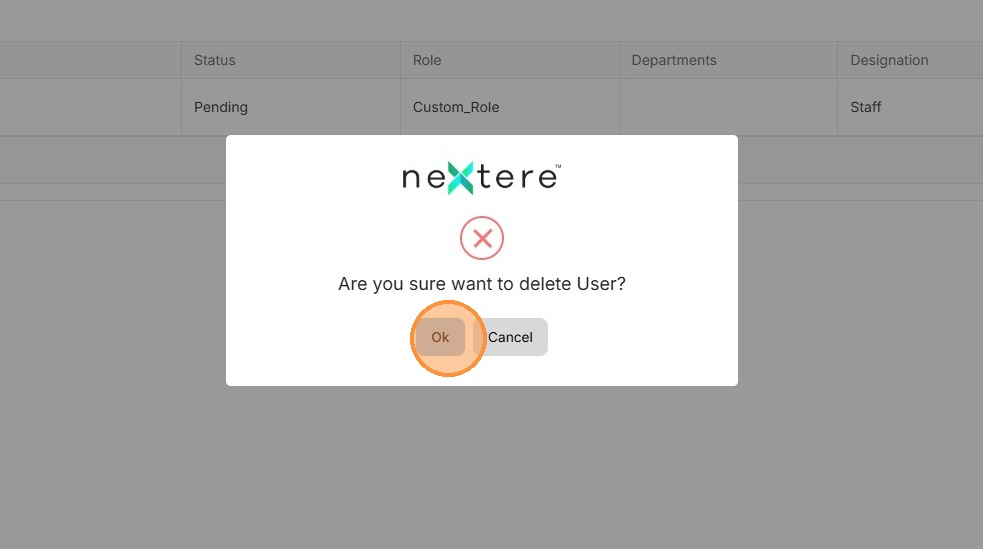
Confirm: A confirmation pop-up will appear.
Click OK to permanently remove the user.
Result: The user is now removed from the system and will lose immediate access to the platform.
FAQ
1. Can I recover a user once they have been deleted?
No. Deleting a user is permanent. If a user needs access again in the future, you will need to create a new profile for them and re-configure their permissions.
2. What happens to the call history and recordings of a deleted user?
The call logs and recordings remain in the agency’s database for reporting purposes, but they will no longer be associated with an active user profile. We recommend exporting any specific user reports before deletion.
3. Will deleting a user free up a seat on my subscription?
Yes. Removing a user typically frees up a license seat, allowing you to invite a new team member.
4. Can I temporarily disable a user instead of deleting them?
If you want to revoke access without losing the user's profile settings, check for an "Active/Inactive" toggle within the user settings. This is often better for staff on long-term leave.
5. Why don't I see the "Delete" option?
If the "Delete" option is missing, you may not have the required administrative privileges, or the user might be the primary account owner, who cannot be deleted without transferring ownership first.
Related Articles
How to resolve message: Your agency blocks you from requesting a contract.
How to resolve message: Your agency blocks you from requesting a contract. Learn how to solve "your agency blocks you from requesting a contract" message. Why do users receive the following message? This is caused by a specific agency setting. As per ...Navigation Menu: Agency Profile
Navigation Menu: Agency Profile This section is like the Agent Profile, but showcases the options users have to edit their agency information and certain preferences when it comes to doing business with an Upline. To access this section, users need ...How to resolve message: Agency that connect with Agent does not allow you to create Request Agent's Contract
How to resolve message: Agency that connect with Agent does not allow you to create Request Agent's Contract Learn how to solve "Agency that connect with Agent does not allow you to create Request Agent's Contract" message. Why do users receive the ...Cómo eliminar usuarios como agencia.
Cómo eliminar usuarios como agencia. Esta guía proporciona un proceso para que los administradores de la agencia eliminen usuarios de manera eficiente de la plataforma Central de Nextere. Ve a https://app.nextere.com/nextere En el lado izquierda de ...How to Invite and Onboard a New Agency
How to invite an agency with the "Add Agency" button This guide provides a step-by-step process for inviting an agency using the "Add Agency" button. This guide will also show the steps the Principal Agent needs to take to successfully complete their ...