How to create a commission claim email
How to create a commission claim email

1. In Central, on the left, click "Settings".
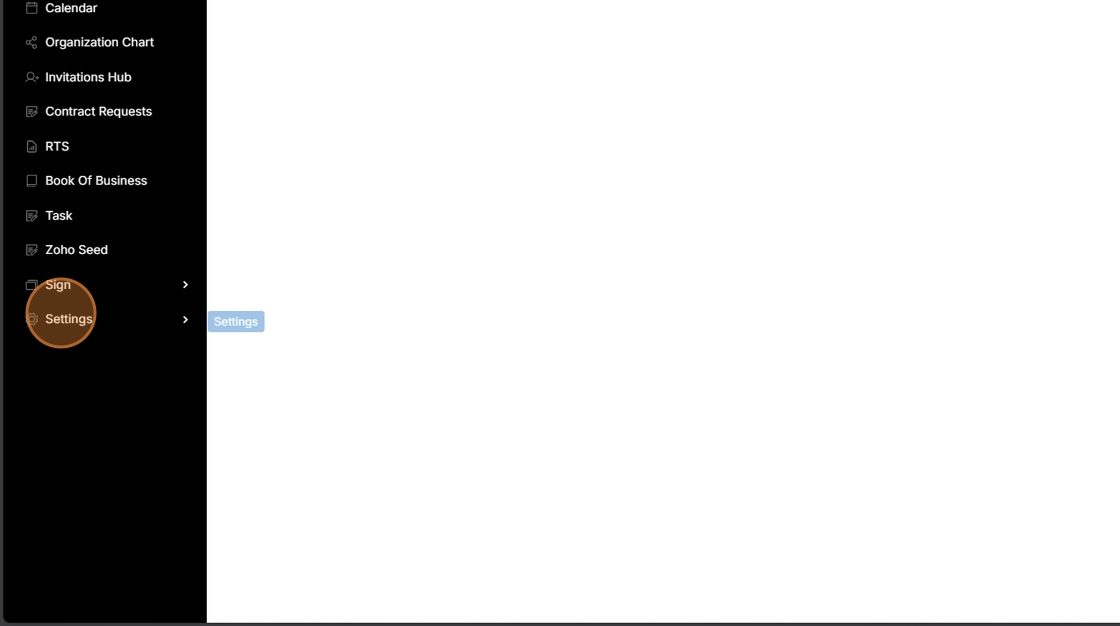
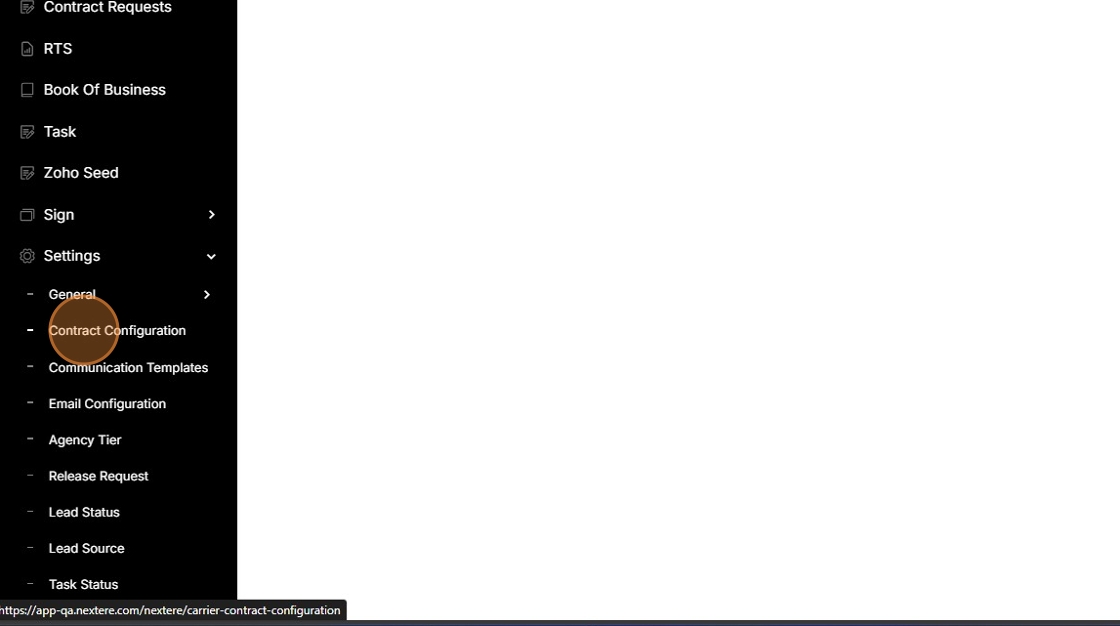
2. In "Settings" click on "Contract Configuration".
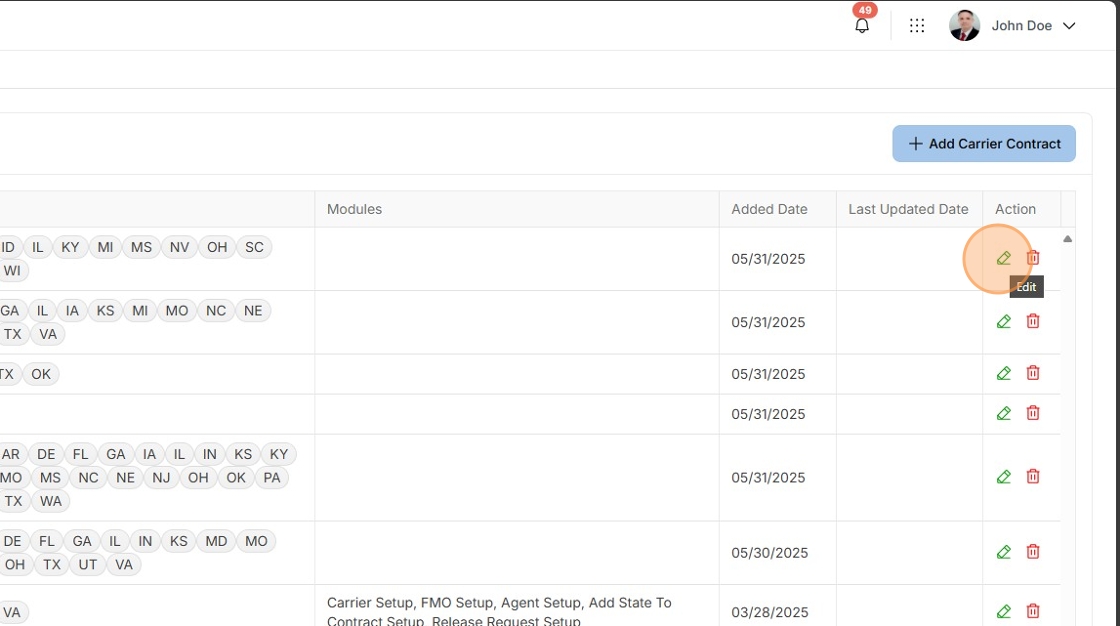
3. Choose a carrier and on the right click on the green pencil symbol or "Edit".
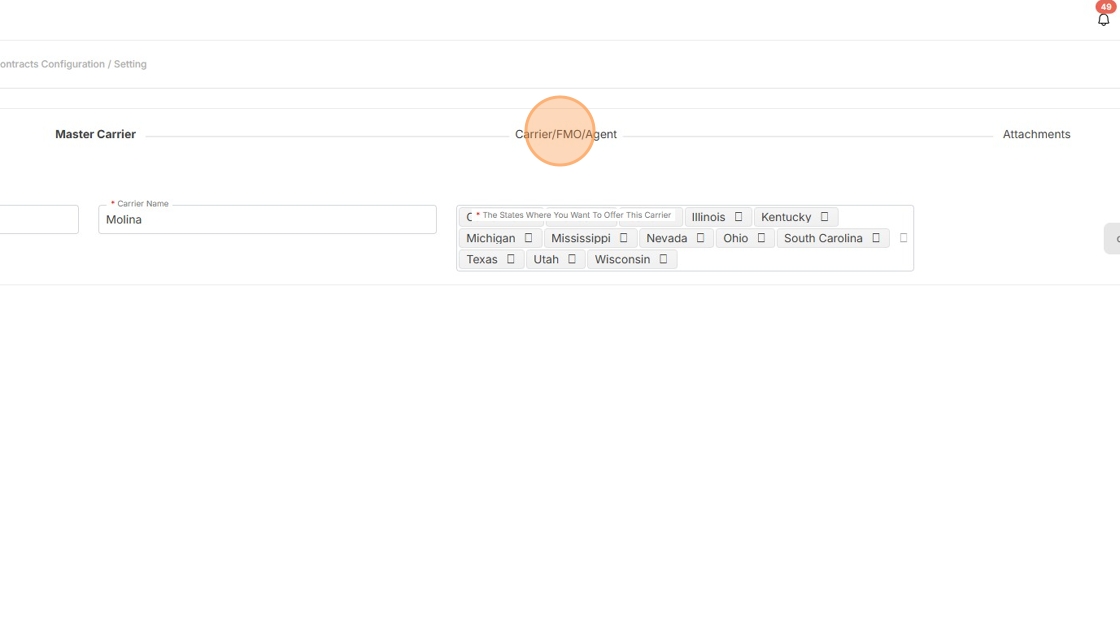
4. In the middle of the page click on "Carrier/FMO/Agent".
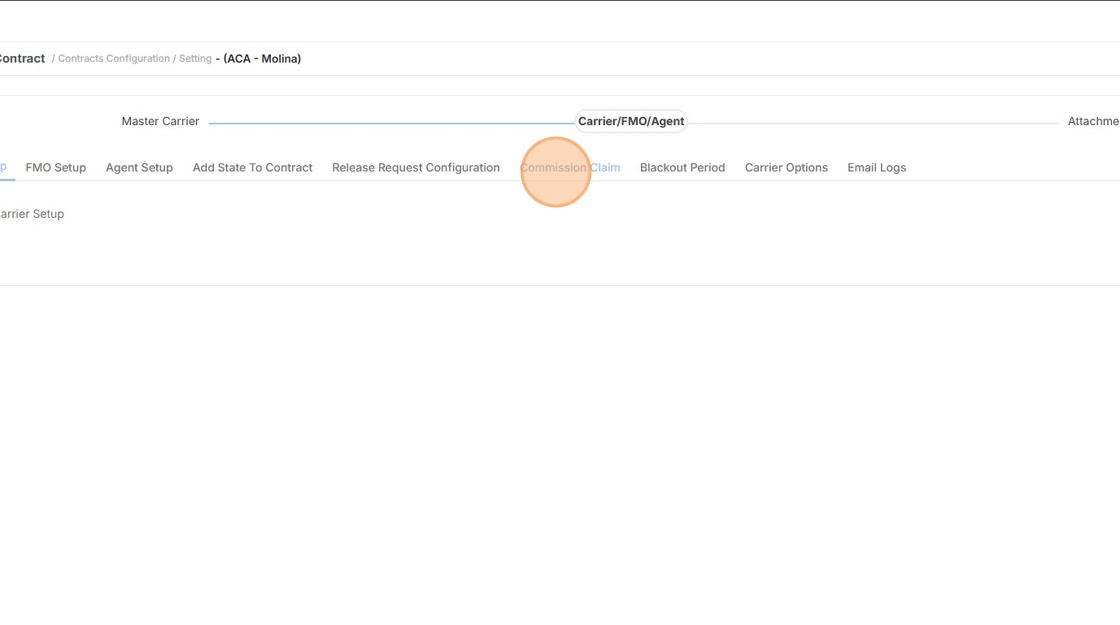
5. Click on "Commission Claim".
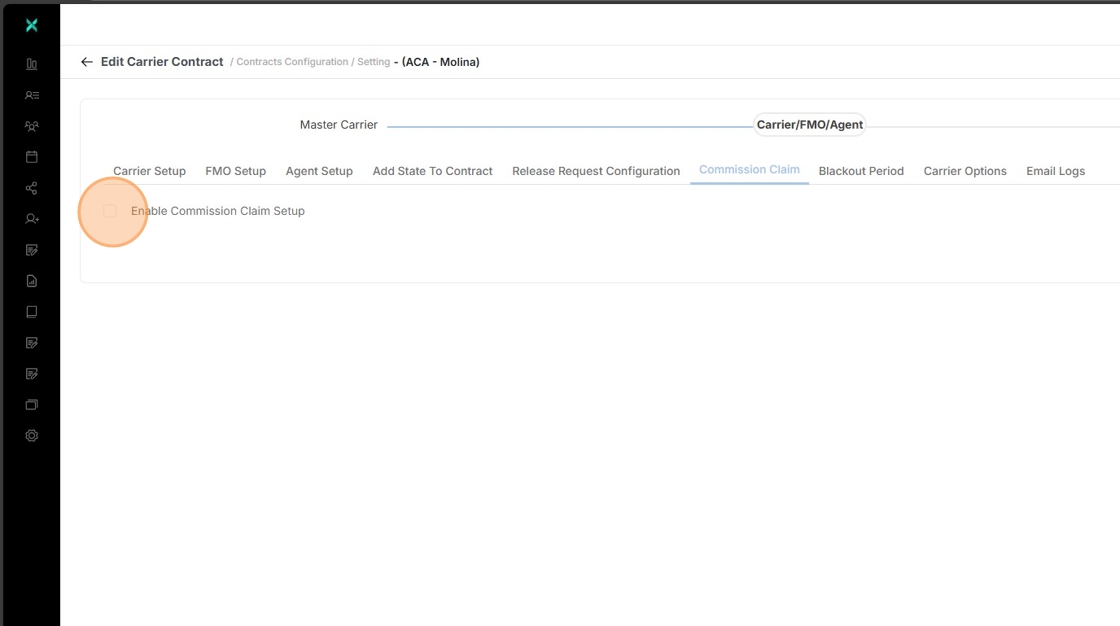
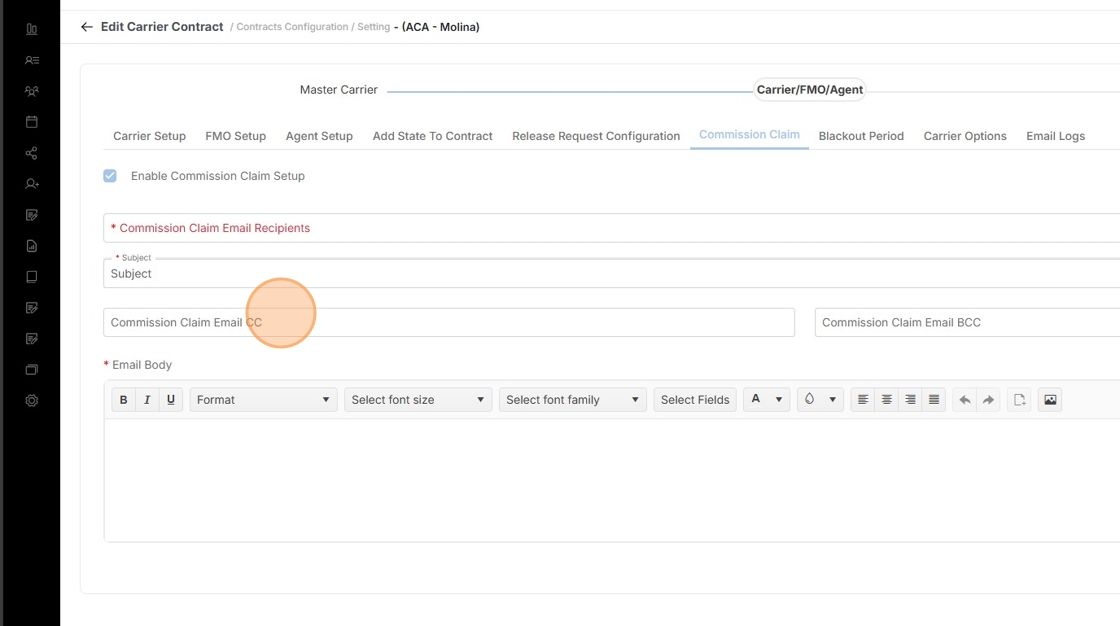
6. To populate the Commission Claim Email form, click on "Enable Commission Claim Setup".
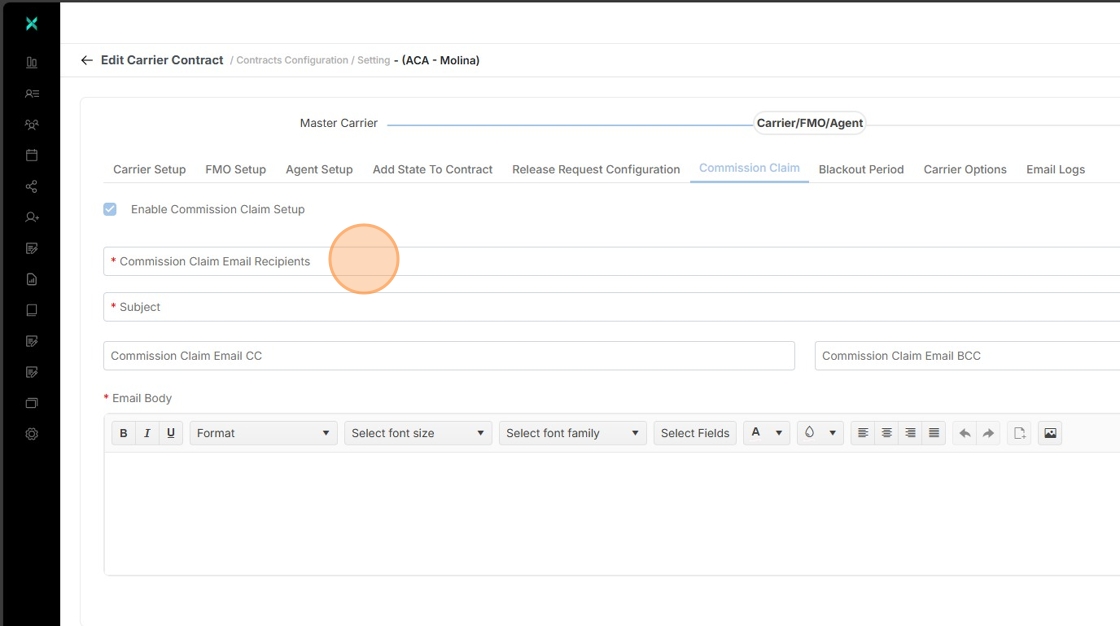
7. Once populated users can click "Commission Claim Email Recipients" to enter the email of the carrier.
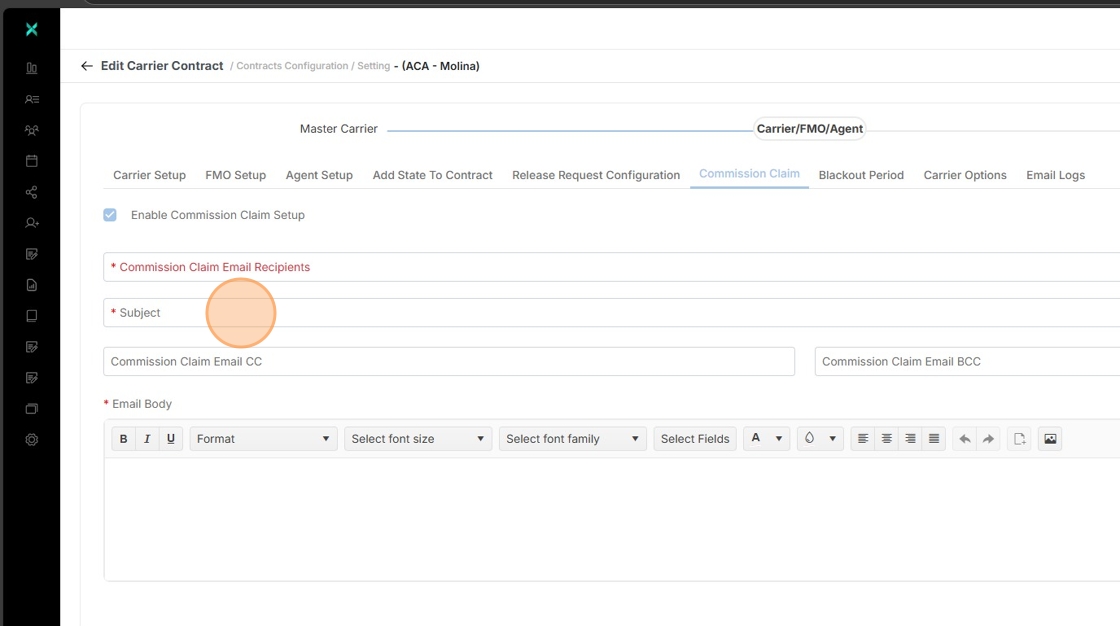
8. Click "Subject" and fill it in.
9. Click "Commission Claim Email CC" for any other recipients that need to be sent these emails.
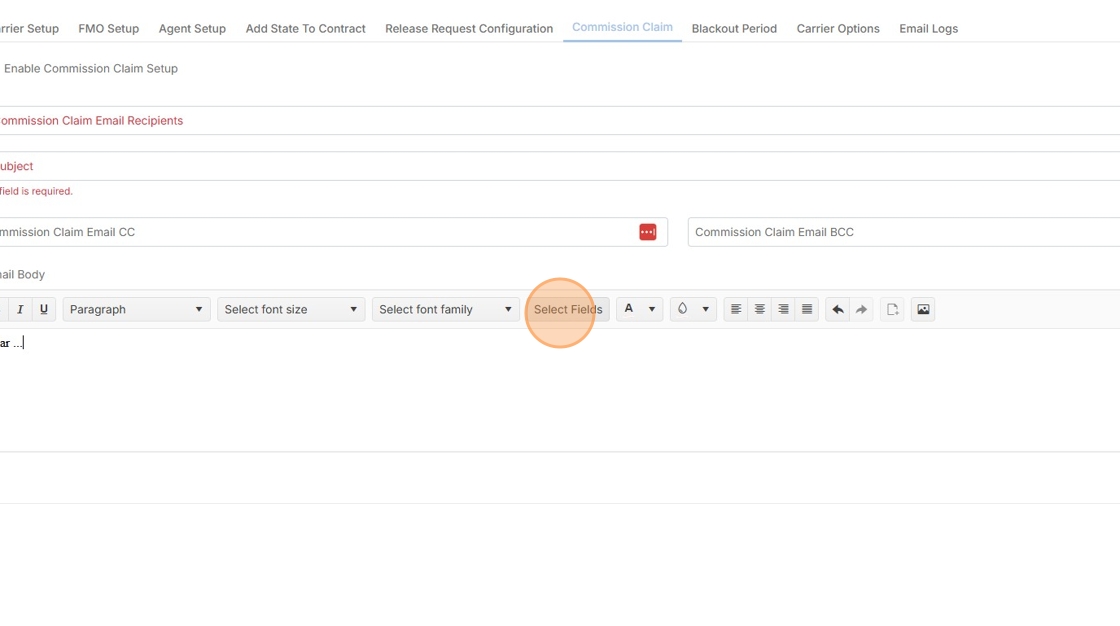
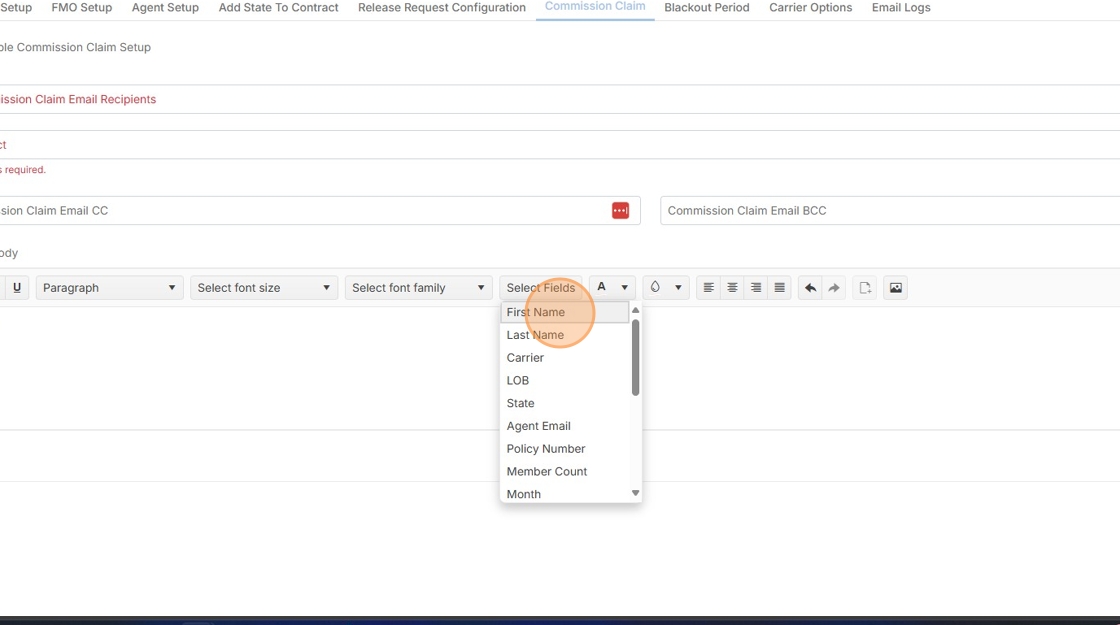
10. When typing in the email the user can utilize the data straight from the claim using the Select Fields drop down.
11. The Select Fields drop down menu has all relevant data for the claim and provides flexible customization.
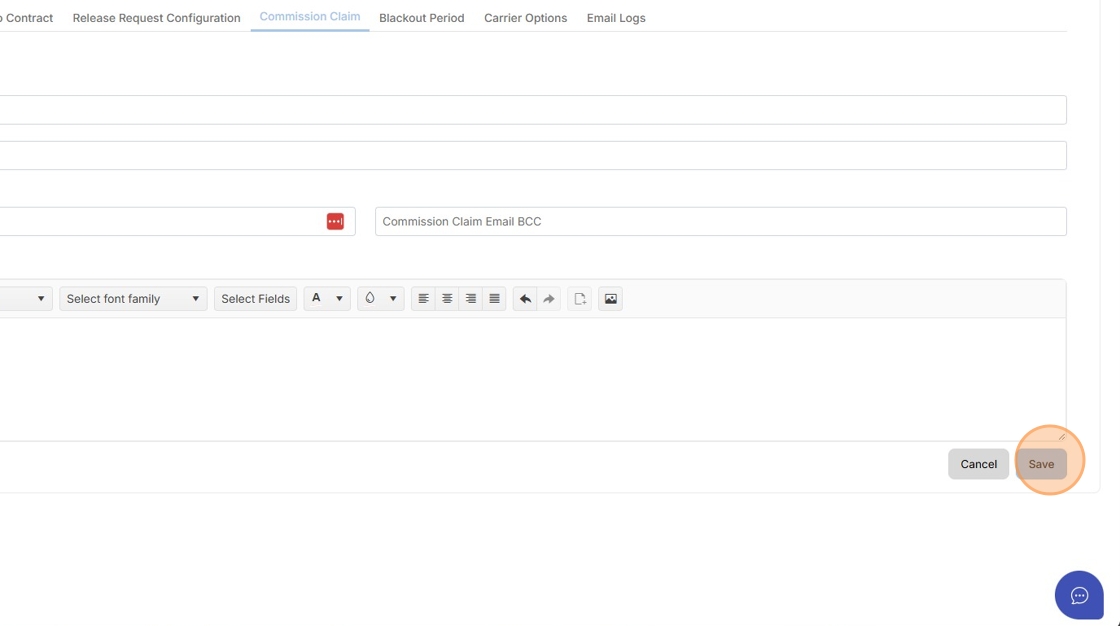
12. Once the form is filled, click "Save".
Related Articles
How to Update Your Account Email Address
How to Update Your Account Email Address This guide walks you through the verification process to ensure your account contact information remains accurate and up to date. Account Settings 1. Go to your profile on the upper right side and click on ...When an agent cannot register their email
When an agent cannot register their email Introduction Nextere Central uses your email address as a unique identifier. To maintain security and data integrity, the system requires the registration email to match the invitation record exactly. This ...How to create a profile using the invitation email
How to create a profile using the invitation email Congratulations on joining the platform! This guide will walk you through the secure process of activating your account, verifying your identity, and completing your professional profile. The ...How to resolve message: Agency that connect with Agent does not allow you to create Request Agent's Contract
How to resolve message: Agency that connect with Agent does not allow you to create Request Agent's Contract Learn how to solve "Agency that connect with Agent does not allow you to create Request Agent's Contract" message. Why do users receive the ...Book of Business: Configuration
Book of Business: Configuration From the Book of Business Dashboard, click the action button in the upper right corner. Select Configuration. Name the configuration for easy identification. Specify the LOB (Line of Business) and Carrier. Import your ...