How to log in on the Nextere's Central App
How to log in on the Nextere's Central App

Below is a guide to show the step-by-step process on how to sign in.
1. Go to app.nextere.com
2. Click "Switch".
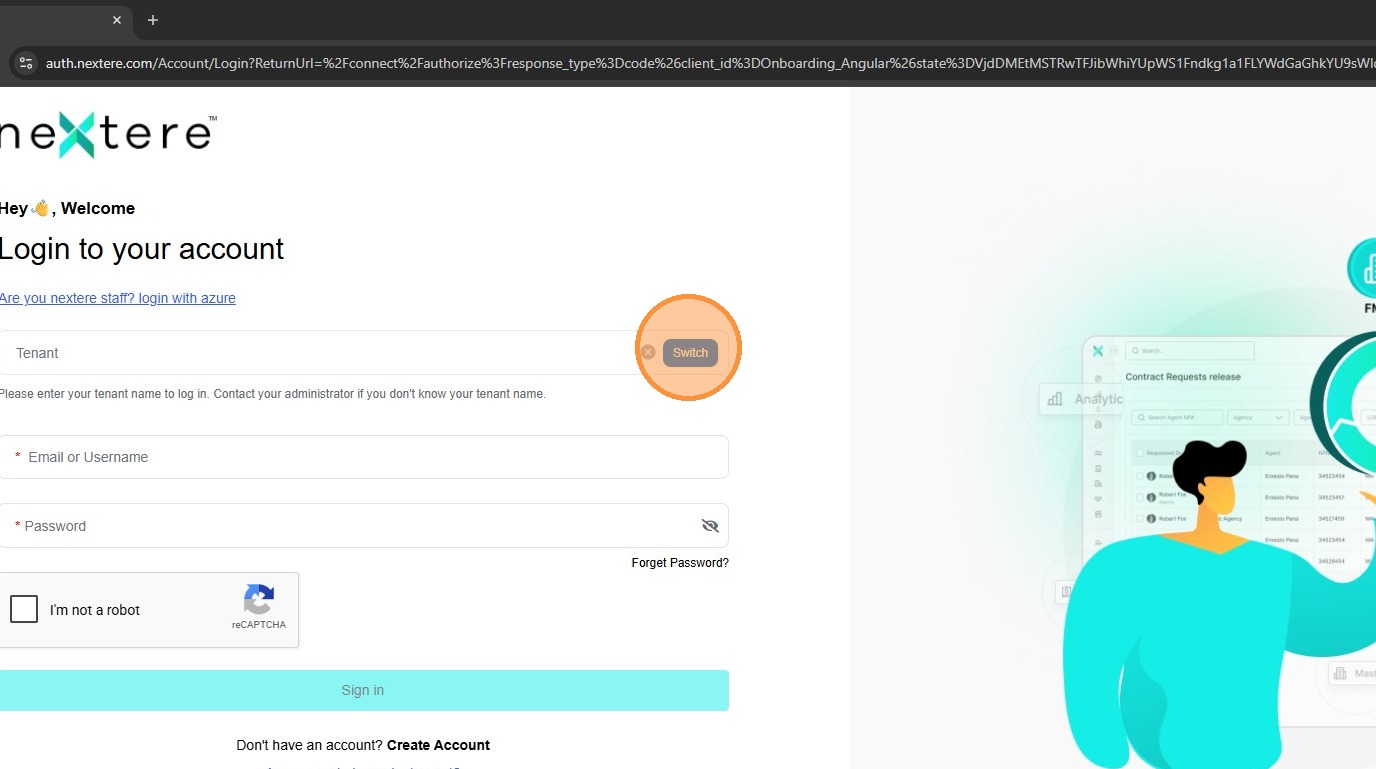
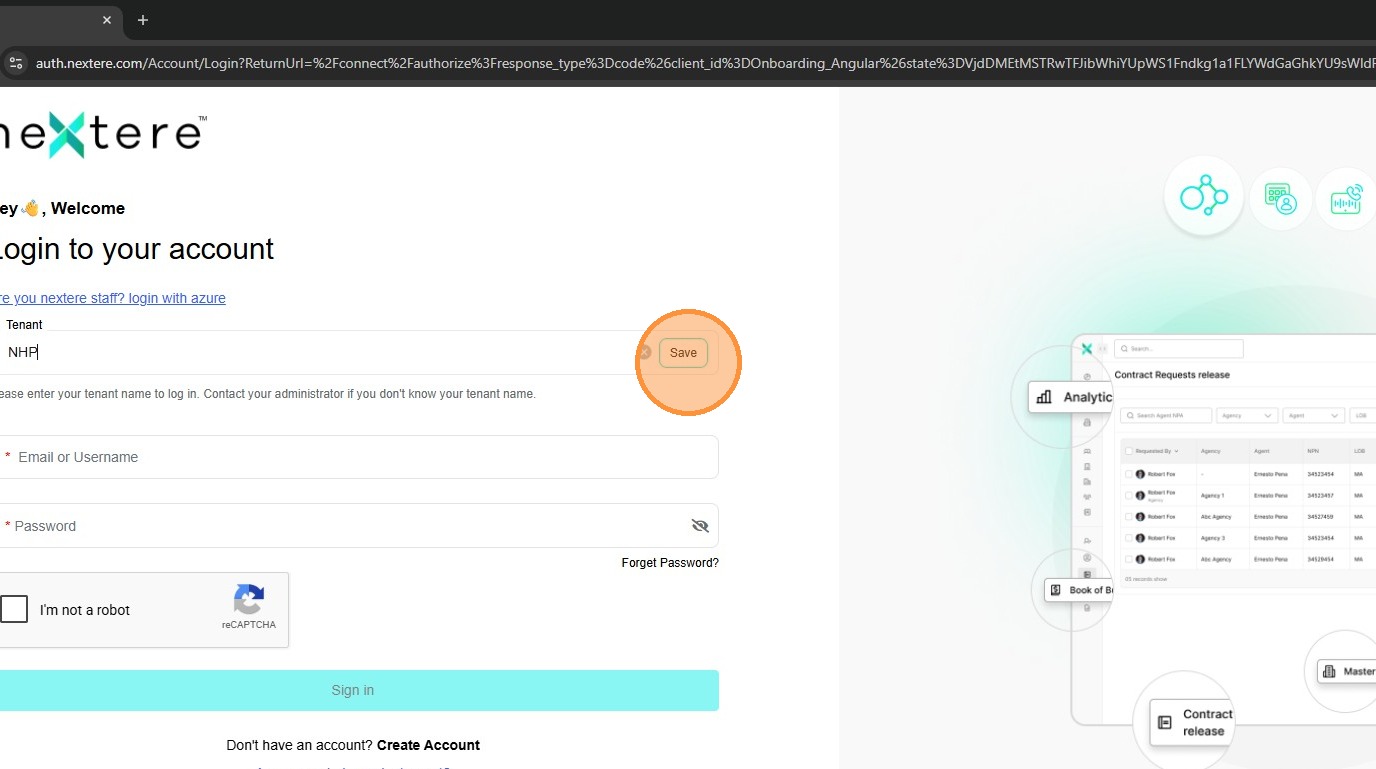
3. Click "Tenant" and enter NHP.
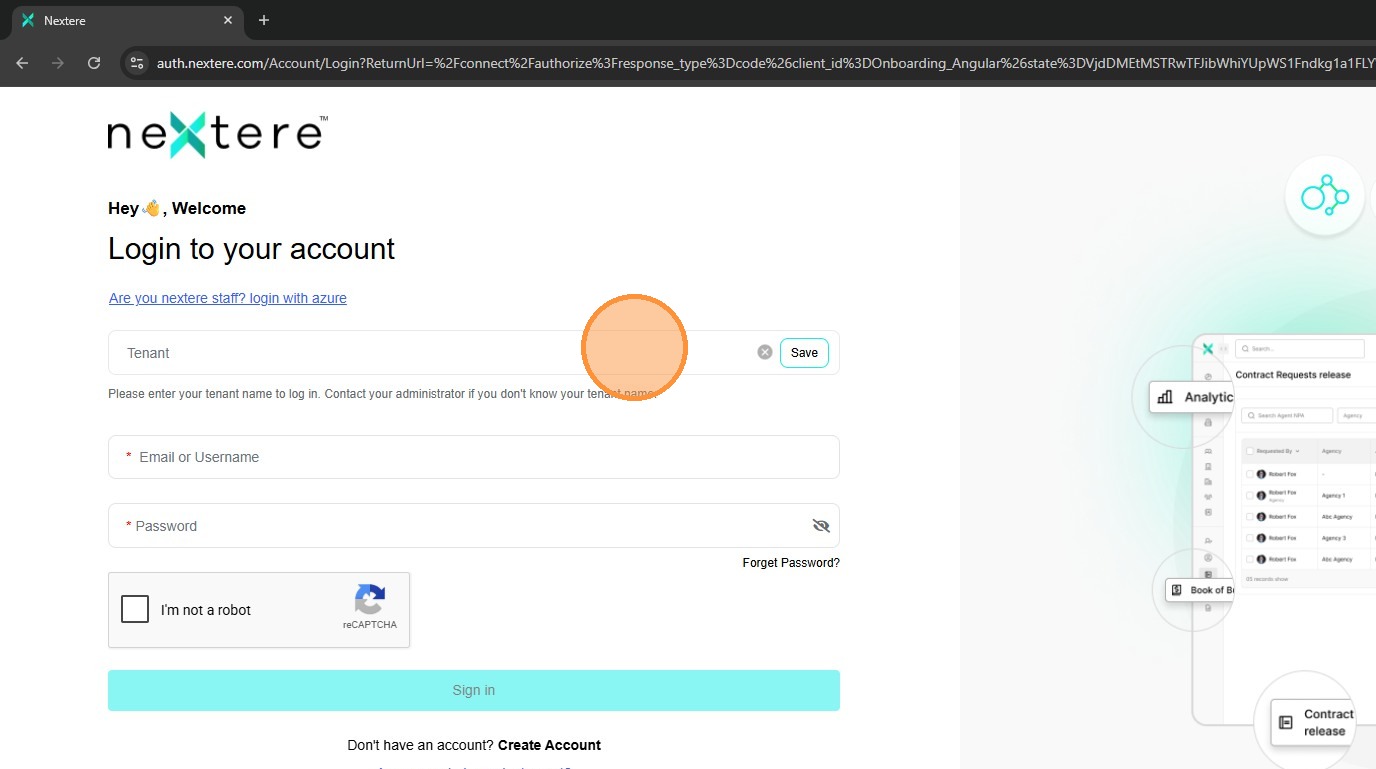
4. Click "Save".
5. Click "Email or Username" and enter your whichever. In this case it would be the email.
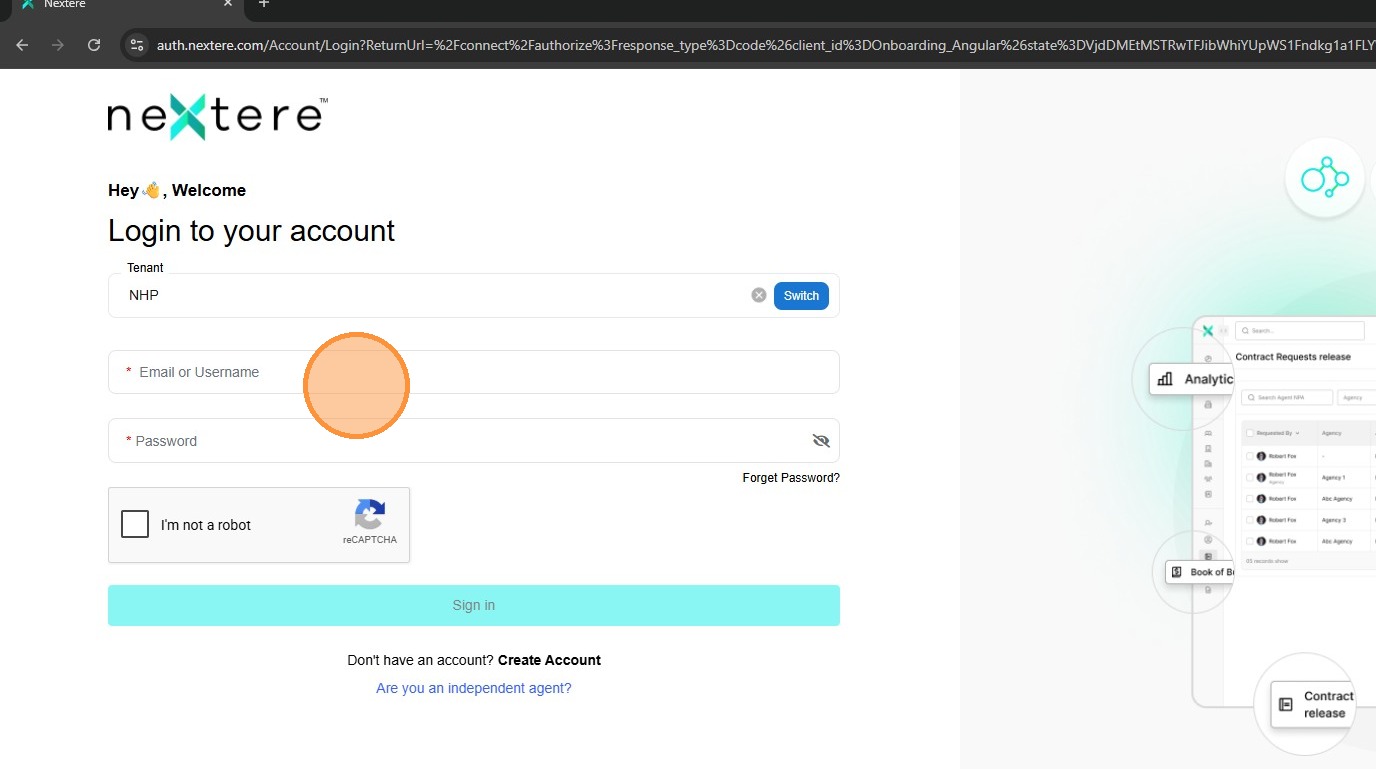
6. Click "Password" and enter your password.
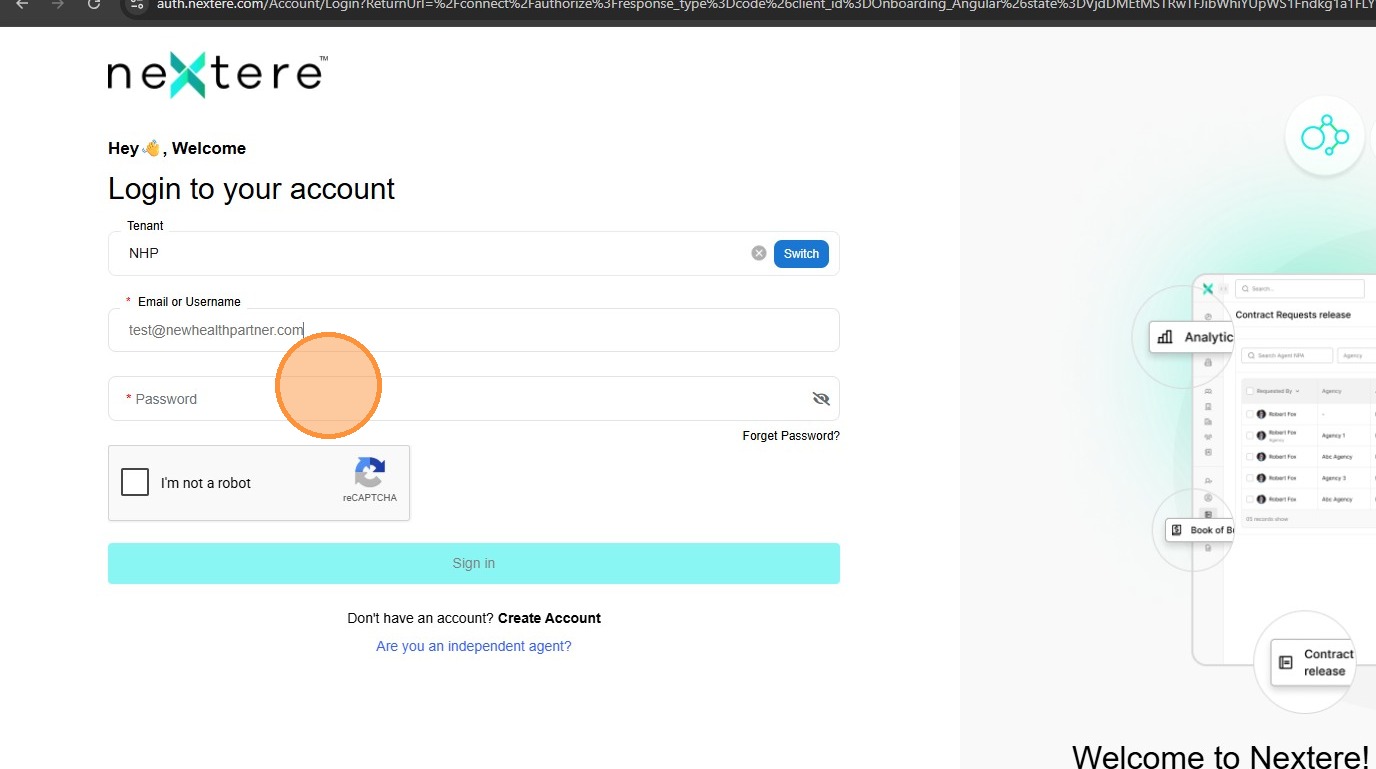
7. Click the Captcha.
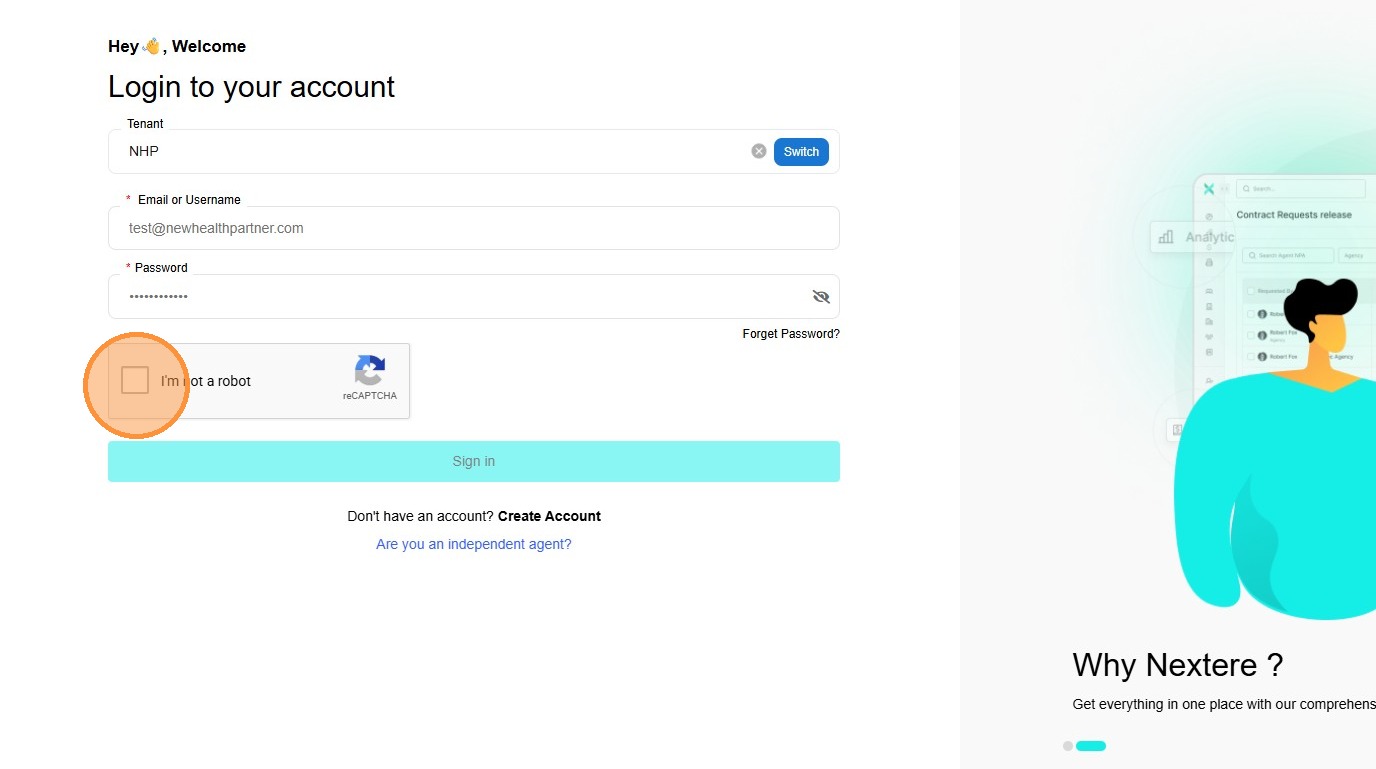
8. Click "Sign in".
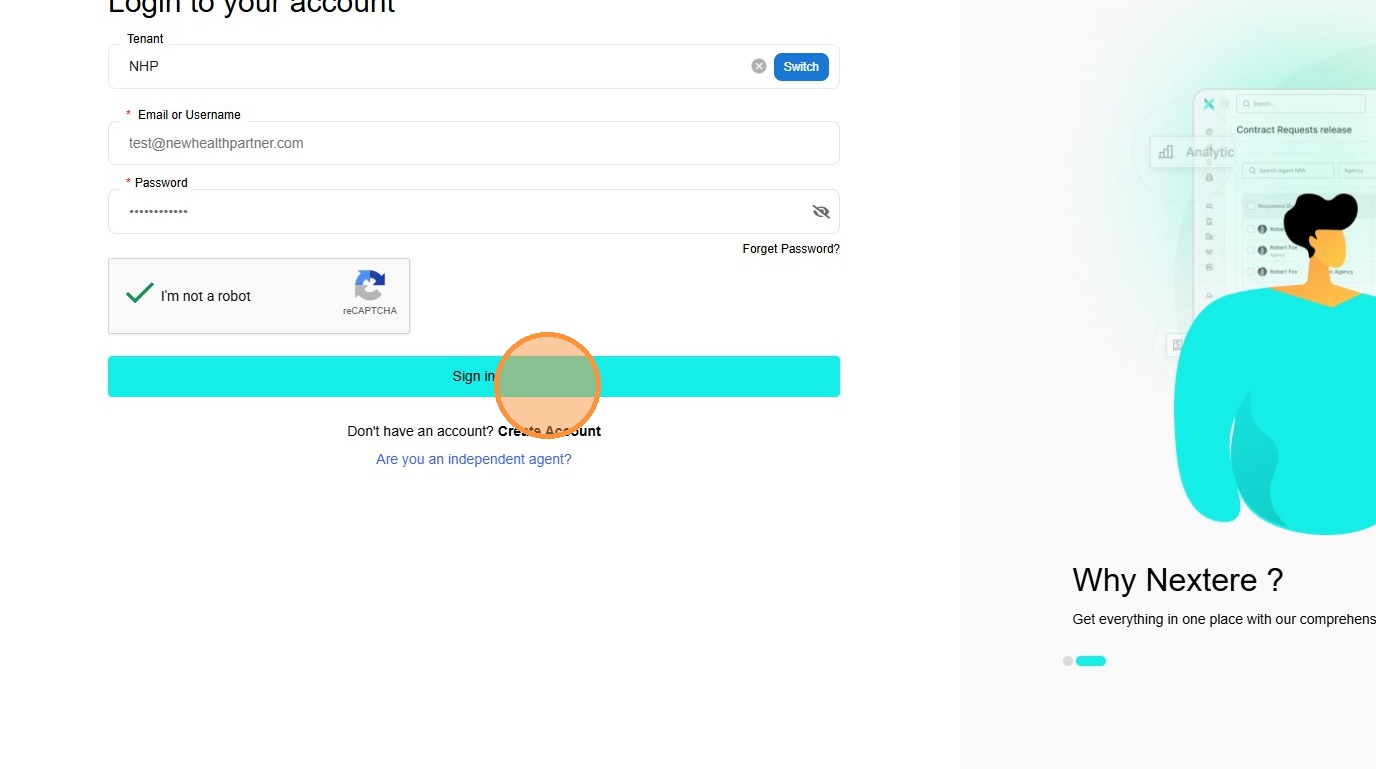
9. If you have a "User Not Found" error, please go to the following link to this article:
Related Articles
How to log in on the Nextere's Central App
How to log in on the Nextere's Central App Below is a guide to show the step-by-step process on how to sign in. 1. Go to app.nextere.com 2. Click "Switch". 3. Click "Tenant" and enter NHP. 4. Click "Save". 5. Click "Email or Username" and enter your ...Sign In Error: User not found
Sign In Error: User not found When attempting to log in to Nextere, you may encounter a "User not found" error. This typically occurs when the application is pointing to the wrong Tenant ID. Follow this guide to verify and update your tenant settings ...How to process multiple agencies in Central
How to process multiple agencies in Central (Bulk Import) Introduction The Bulk Import feature allows Agency Administrators to upload multiple agencies simultaneously using a standardized Excel template. Use this feature to save time when onboarding ...Cómo procesar múltiples agencias en Central
Cómo procesar múltiples agencias en Central Esta guía proporciona un proceso sencillo para importar archivos masivos de agencias en la plataforma Central. 1. Ve a https://app.nextere.com/. 2. Ve a la izquierda y haz clic en "Gestión de la Agencia". ...How To Sign Into Your Account Using Incognito Mode
How To Sign Into Your Account Using Incognito Mode Learn how to securely access your account using a private Chrome incognito window. This guide covers the entire process from launching the browser to completing the reCAPTCHA verification for a ...