Understanding Your Dashboard
Dashboard Overview

The Dashboard serves as the central hub for accessing key information and features within the application. It provides users with a comprehensive overview of their activities, tasks, and performance metrics in a single, easy-to-navigate interface. Its primary purpose is to deliver actionable insights and quick access to essential tools.
The Connect Dashboard provides a real-time view of your team’s activity, scheduled meetings, and assigned tasks—all in one place. This dashboard helps you stay organized, monitor user availability, and quickly access your daily priorities.
Access the Connect Dashboard
To begin, log in to your Connect account and navigate to the Dashboard from the left-side menu.
This step ensures you land on the central hub where all key insights are displayed.
Review User Availability
Under the Insurance Partners section, you can see your team members grouped by their status:
At Work: Users currently active.
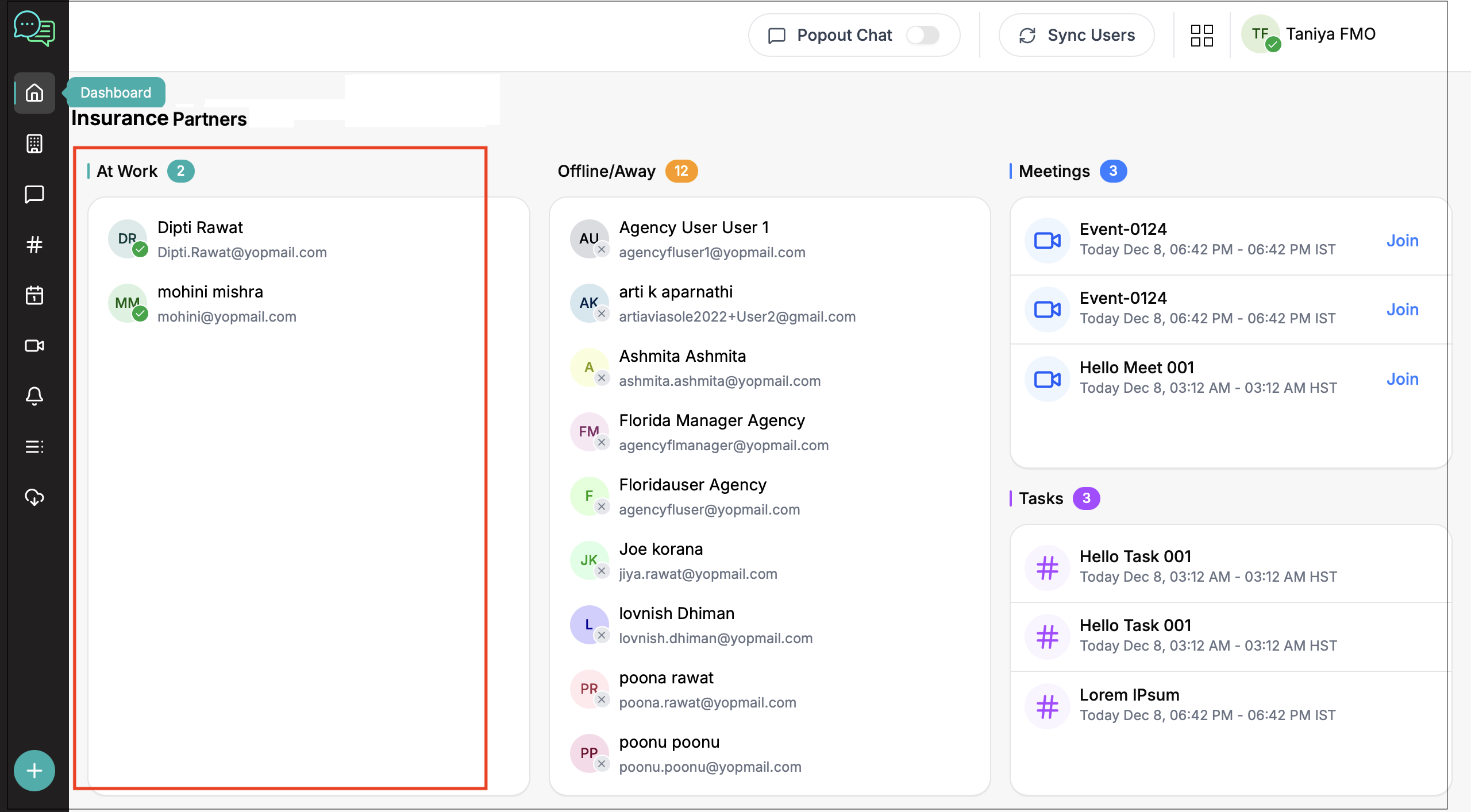
Offline/Away: Users who are not availableMonitoring this section helps you understand team bandwidth and contact the right people at the right time.
On the right, the Meetings panel lists all your scheduled events for the day.
Each meeting card displays:
Meeting title
Date & time
Time zone
A quick Join button
This allows you to easily join meetings without searching through emails or calendars.
View Assigned Tasks
Below the meetings section, the Tasks panel shows all tasks assigned to you.
Each task card includes:
Task title
Scheduled date & time
This helps you prioritize your workload and stay on track throughout the day.
Use the Top Bar Actions
At the top of the dashboard, you will find important quick actions:
- Popout Chat: Open chat in a floating window
- Sync Users: Refresh user list to see real-time status
- Profile Menu: Access your account settings
These controls help you manage your workflow without leaving the dashboard

User availability updates depend on system sync and may have a slight delay.
Some features may vary based on your user role and permissions.
Meetings and tasks are visible only if they are assigned to your account.
1. Why don’t I see any users under “At Work”?
This may occur if no team members are currently active or if your user sync needs refreshing.
2. Can I join a meeting directly from the dashboard?
Yes, simply click the Join button next to any meeting.
3. Why are some users showing as “Offline/Away”?
Users appear offline when they haven’t logged in or have been inactive for a while.
4. How often does the dashboard refresh?
You can manually refresh using Sync Users, but the system also updates periodically in the background.
Related Articles
How to manage Channels
Creating and Configuring Channels in Nextere Connect The Nextere Connect section is your central place for team communication, and collaboration. From here you can view active users, manage and create channels, and quickly start or join chats. Open ...